Co-browsing software lets a support agent see the customer’s web page and help them move through it as it happens. The customer stays on their own page. The agent sees a matching copy of it. DOM-based tools send the page’s structure and each action on it, not a video of the customer’s whole desktop.
Before you help anyone on a shared page, your team has three choices to make. How much may the agent do: guide, or take control? Which privacy controls are in place? And how does the customer give permission? After that, the number of seats and sessions decides the plan. A short checklist then confirms you’re ready before the first session.
How co-browsing software works
Helping on a single page fits when the agent needs to help with a website. It doesn’t fit when the agent needs to look around the customer’s whole desktop. Within page-level help there are two different needs. One is showing the customer what to do. The other is letting the agent do it for them.
In DOM-based co-browsing, DOM stands for Document Object Model. It’s the browser’s map of how a page is built. JavaScript tracks clicks, scrolling, typing and moving between pages. It copies those changes between the two browsers, so both people see the same page. That’s how DOM-based co-browsing works in general. Each tool does it a little differently.
The access level decides who acts:
- View-only guidance: the agent follows the page and explains the next step, and the customer does it.
- Interactive access: the agent can act on the shared page by clicking, scrolling or typing.
Both are narrower than sharing the whole desktop, where unrelated windows can show up. We pick the smallest scope and access level that still lets the customer finish the task.
When co-browsing helps
Showing someone on screen is worth it when a customer can’t find or finish a step on the page. A simple question of fact is faster to answer directly than with a shared session.
- Complicated forms: point the customer to the field or step where they’re stuck while they type in the information.
- Account settings: guide them to the setting they need to change.
- Finding things while shopping: help them find a product or get through checkout when the next step isn’t clear.
When one of these comes up in a chat or a phone call, on-screen guidance can join the conversation. The customer keeps doing the clicking while the agent explains.
An agent can say: “I can guide you on this page while you make the changes.”
Our consent article covers the steps for asking permission in detail. If the task turns up a likely bug, our bug-reproduction article walks through the deeper steps for tracking it down.
How to start a session in coview, with permission
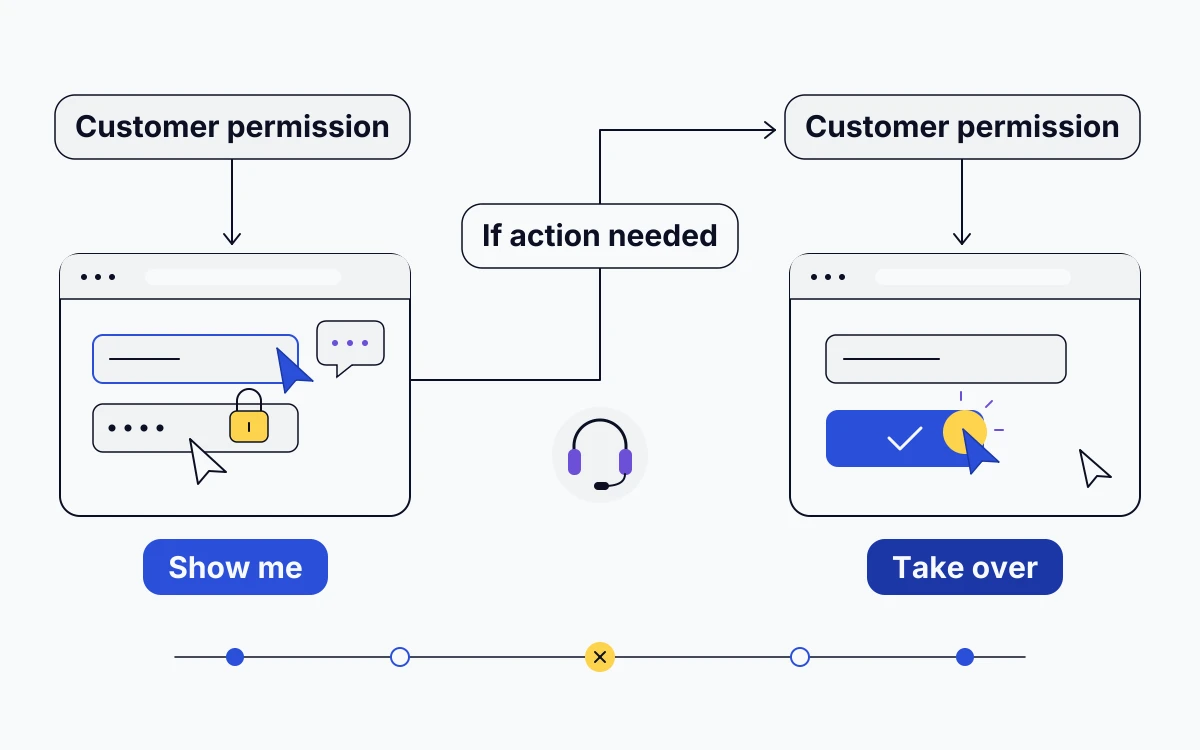
Start with Show me. Ask for Take over only when the customer needs you to do something for them. The customer gives permission for each level separately.
- Install the script. It’s one script tag on your website or web app, and the customer installs nothing. Install coview on your site covers setup.
- Select the visitor. Live now lists who is on the site right now. Pick the customer you’re helping, who stays on their own page. See Live now and watching a visitor.
- Request Show me, with something like: “May I use Show me to highlight the next step?” Show me asks the customer for permission before you can point, draw, highlight or number steps on their page. They see your guidance on their own screen and keep doing the actions themselves. Tell them that pressing Esc stops it. See Show me and Take over.
- Request Take over if you need it: “May I request Take over to click and type in this tab?” It’s a separate permission request, even if the customer has already accepted Show me. Once they approve, you can click and type in that tab only. They see every action on their page, and Esc ends your control. Agents never type into password, card, bank or tax-number fields; the customer fills those in. The same Show me and Take over docs page covers this level.
How to choose a plan
The right plan covers your seats, recorded visits, how long recordings are kept, and how much co-browsing you expect. Recorded sessions and co-browsing sessions are counted separately. So the number of agents is only one part of the choice.
| Limit | Free | Starter |
|---|---|---|
| Price | $0 | $19 per seat monthly, billed yearly |
| Seats | Up to 2 | Up to 10 |
| Recorded sessions monthly | 1,000 | 5,000 |
| Recording retention | 7 days | 30 days |
| Co-browsing sessions monthly | 10 | Unlimited |
One recorded session is one person’s visit, however many pages they open. Bots aren’t counted, and neither are visits where no real person showed up. Co-browsing sessions have a count of their own.
Every plan includes session replay, co-browsing and live chat. Free works only if all of its limits fit. Starter is the step up when you need more room and its limits cover your team. For how long recordings are kept, think about how long after a chat your team may still need to replay the session. How fast agents first reply is only part of it.
A new workspace gets a 14-day trial of every feature, with no card needed. After that it moves to Free unless you choose a plan. So compare your expected monthly use with the table before the trial ends. The trial is temporary, and your plan sets the limits after it.
Checklist before your first session
Do these privacy and setup checks before you roll out. They are a firm requirement, so finish them before the first customer session.
- Check masking with test data. Password and card fields, plus elements marked
data-coview-mask, are masked in the visitor’s browser in both replays and live views. Their contents never reach us. Look at the agent’s live view and the replay. Include custom elements that show private information. - Test the tasks your team actually helps with. Run a typical checkout, account change and complicated form from both sides. Knowing your framework is supported is a good start. But only a run-through shows whether every step in your app works.
- Practice asking and stopping, with one teammate as the customer and another as the agent. Go through the separate requests for Show me and Take over. Confirm the customer can end either one with Esc.
- Set a firm rule for when to stop. If private information can’t stay masked, stop there. The customer finishes that step on their own. Nobody asks them to reveal it so support can carry on.

We build coview: session replay, co-browsing, chat and calls for support teams. Questions about a post? Ask us from the contact page.