To reproduce a customer bug, copy exactly what the customer did, on the same kind of setup they used. Then repeat those steps yourself and compare what should happen with what actually happens. One team rule stops this from dragging on. Once a careful attempt fails, don’t repeat it the same way again. Either find the condition you’re missing, or pass the case on with what you’ve already seen.
Work from the recording, and only test where it’s safe. Engineers then get either a case they can reproduce or a clear list of what’s still unknown. The same habits shape what agents say to customers and the weekly checklist for team leads. And “cannot reproduce” is never filed as “resolved.”
Why asking for steps often misses the bug
Written steps leave a lot out. They can miss part of what the customer actually did, and the conditions they did it under. A bug can depend on a certain mix of platform (device and system), input, and use case. That mix often never makes it into the steps the customer remembers.
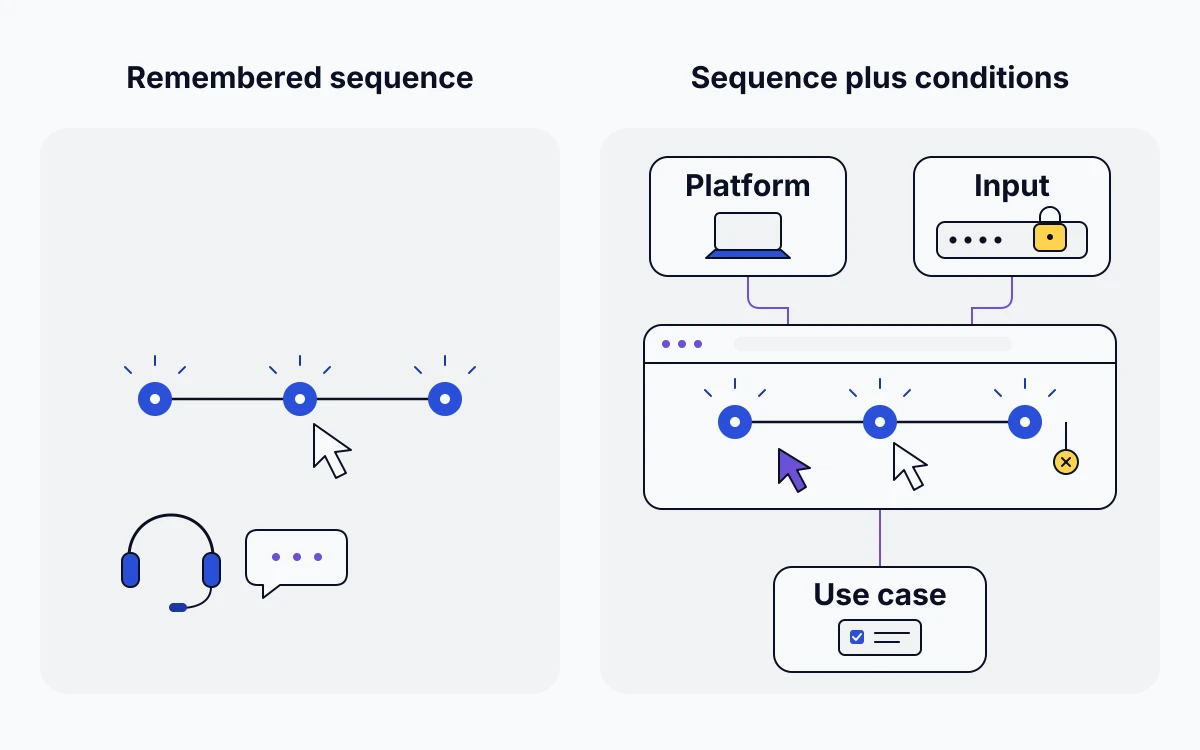
Take “submit the form.” It could mean clicking a button or pressing Enter. Those two can behave differently. So you can follow the written steps exactly and still miss the path the customer took.
That’s why the stopping rule exists. It keeps the work moving. It isn’t a test of whether the bug is real. A failed attempt only tells you that the conditions you tried don’t cause the failure. The customer’s experience still stands.
How to reproduce a customer bug from the recording
First, write down what should have happened. Then write down exactly what the customer saw instead. A visible result like “the form stays open and shows an error” gives you something to compare against. “Not working” doesn’t.
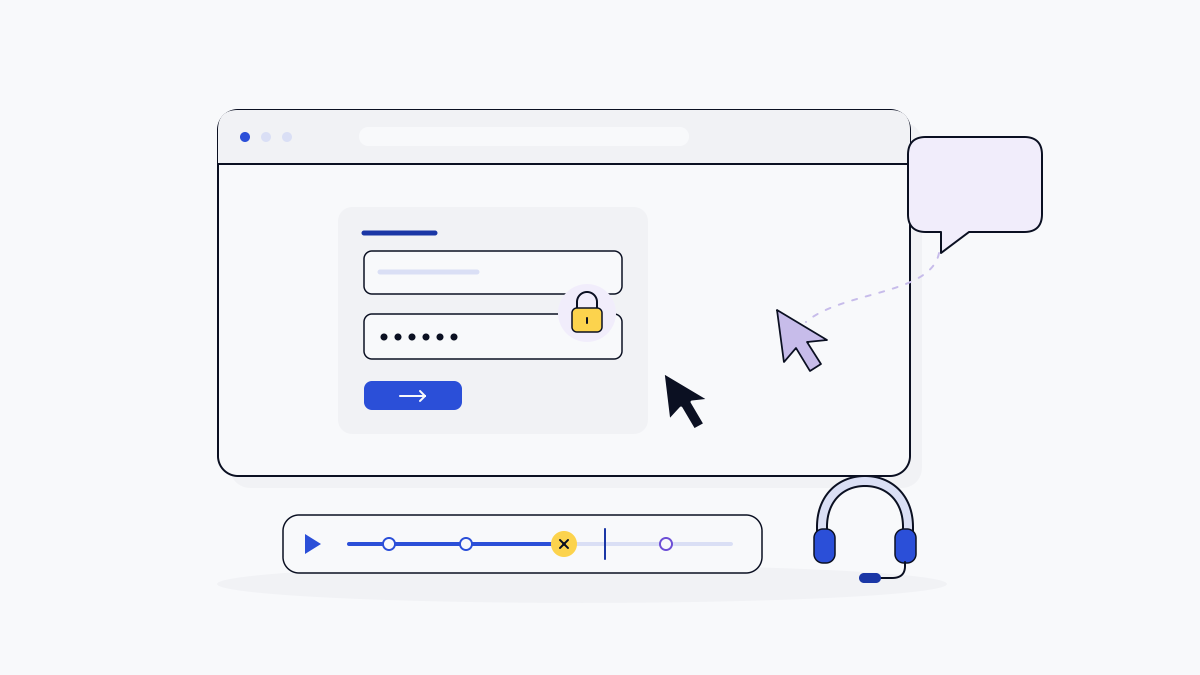
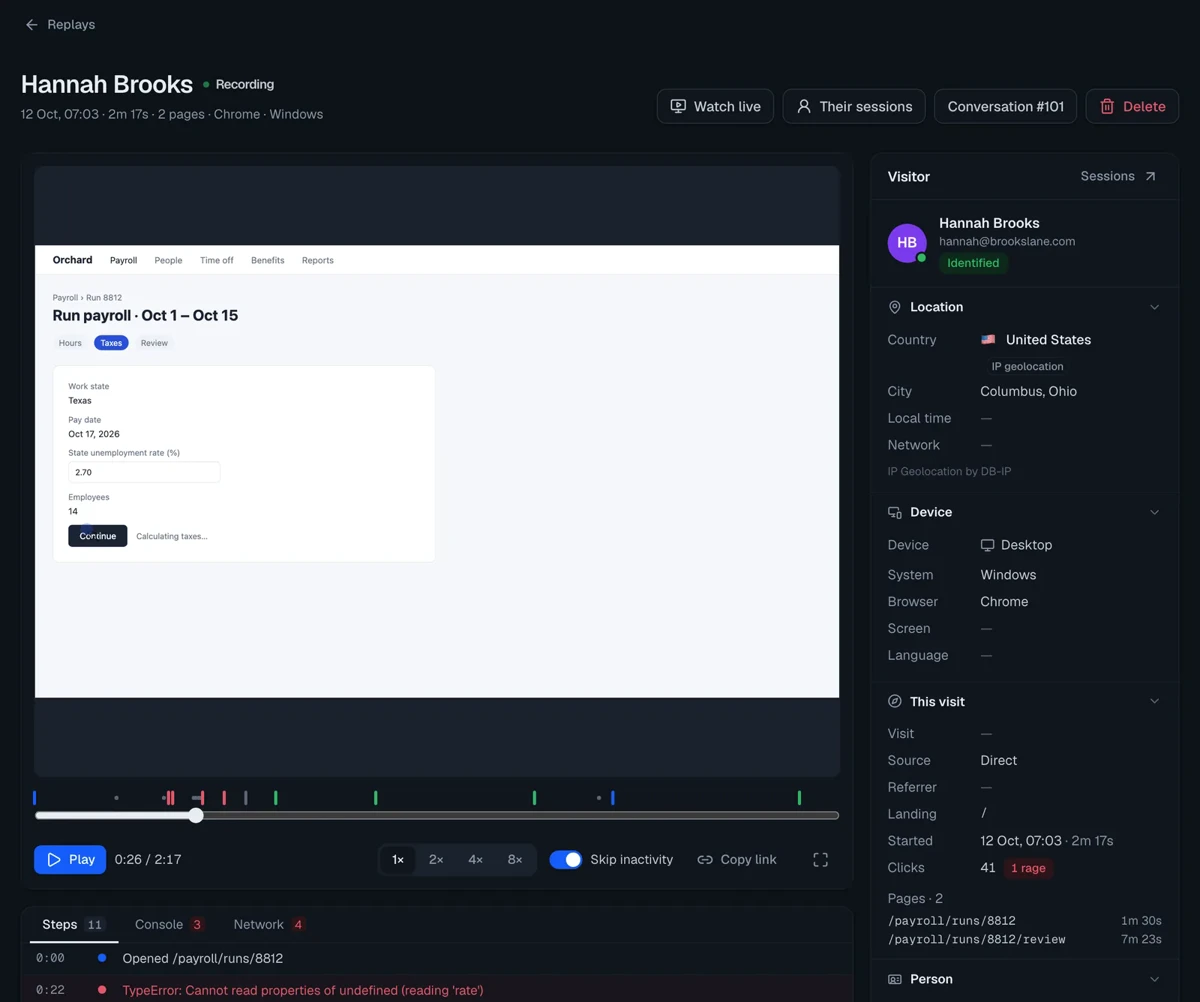
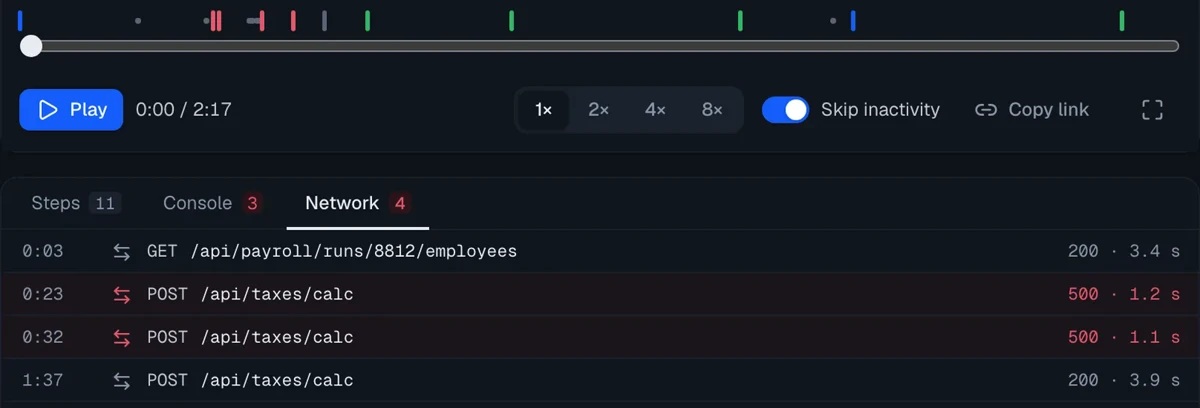
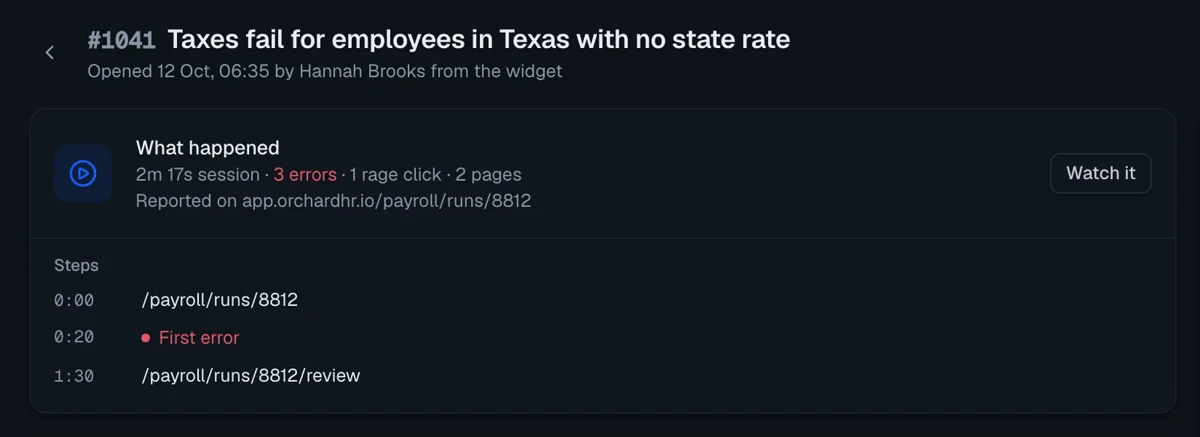
- Open the recording. On a coview ticket with a session attached, go to What happened → Watch it to play it. The docs page Watch a recorded session explains the playback controls.
- Find the failure. Click an error marker, and playback starts two seconds before the error. Hover over a marker to see details, such as the error message or a failed request’s address and status. Also watch the actions that lead up to the error, because that’s the sequence you’ll repeat.
- Read the timeline while it plays. Under the player you’ll find Steps, Console, and Network; click any row to jump to that moment. We also keep errors and requests from the page load before recording started. Tell those apart from what the customer did later. We never keep request bodies or headers, which hold the data sent with a request. A workspace can also turn off browser console and network capture in Settings › Privacy.
- Note the conditions before you test anything. Visitor shows the device type, system, browser, screen and viewport size (the visible part of the window), and light or dark mode. Write those down along with the steps, the expected result, and the failure you saw. If you couldn’t see something, mark it as unknown instead of guessing.
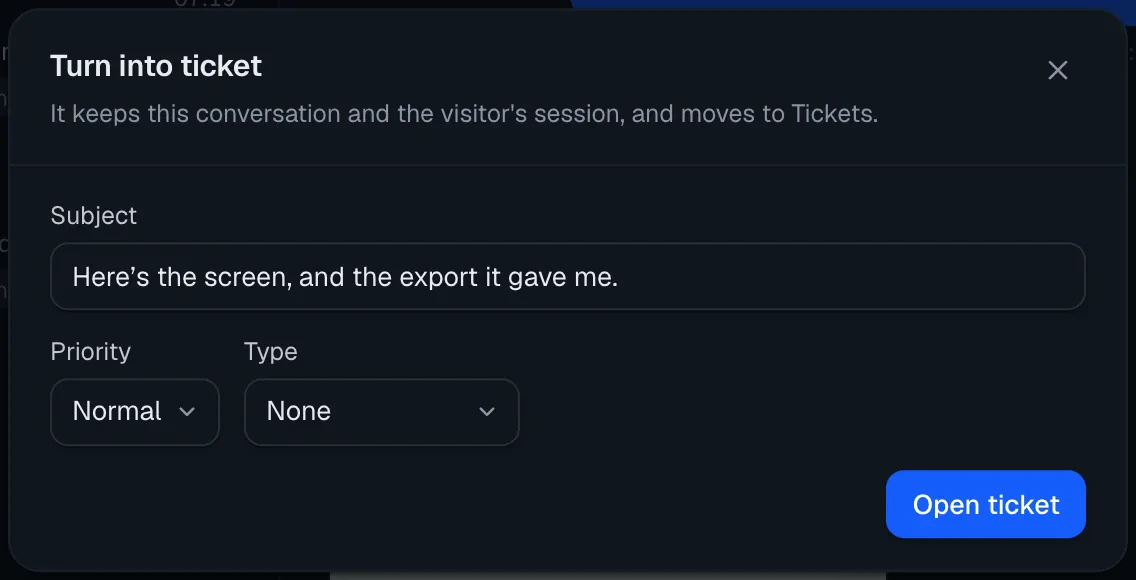
We mask passwords, card fields, and anything marked data-coview-mask in the visitor’s browser. This works the same in replays and live sessions, so those values never reach us. You can read more about privacy in session replay without recording passwords.
That gives agents something simple to tell customers: “I can see the error, but not the masked input. Please don’t send passwords or card details.”
Repeat the steps, then change one condition
Whenever you can, reproduce the bug in a test account or sandbox (a safe practice space). Use test data that isn’t sensitive. Some actions charge, send, delete, or change customer data. Before you repeat one of those, agree on a safe way to test it with engineering. If there isn’t one, don’t test; hand off what you already have. Note where your setup differs from the customer’s.
On each new attempt, keep the steps the same and change just one condition in the setup. That way another agent can easily check each result.
- Match the setup the customer reported: the same browser and operating system, with versions where you know them. Record the software and hardware versions that matter. Note any difference you can’t remove.
- Write numbered steps that someone else can follow. For each step, name the page, the control, the action, and any input that isn’t sensitive. A shortcut like “complete checkout” hides several actions, so spell them out.
- Compare and record. For each attempt, note whether the expected behavior happened. Also note whether the result matched the failure the customer reported. If you get a different error, record it as a separate finding, not as a successful reproduction.
- Change the setup on purpose. Where you can, repeat the same steps in a different browser. Then change another condition that matters. Each time, log what you changed and what happened. If you change several things at once, you won’t know which one made the difference.
When the bug won’t show up, look for what’s missing
We treat a failed attempt as a sign that something is missing from the test, not from the customer’s story. Then we go looking for it.
- Know the difference between a missing recording and a clean one. No session attached means the visit wasn’t recorded. For example, the customer may have declined analytics, or recording may be off for the site. The problem may still have happened; there’s just nothing to watch. The docs page Customers reporting a problem explains this.
- Ask only for the detail you’re missing. Work out which action, input, or condition the recording doesn’t show. Then ask about that one thing, so the customer doesn’t have to tell the whole story again:
“I couldn't reproduce it with the conditions I have. Did you click the button or press Enter?”
- If the customer can make it happen again, ask them to show you live. The Show me and Take over docs page explains how.
“If you can show the problem again, may I request Show me? You can stop it with Esc.”
We ask for permission separately for each level. Show me lets the agent point, draw, highlight, and number steps on the customer’s page. Take over lets the agent click and type, but only in that tab. It never works in password, card, bank, or tax-number fields. The customer can stop either one with Esc.
- Keep serious reports open and pass them to engineers. Include the actions you saw, the result of each attempt, and what’s still unknown. If that isn’t enough to go on, ask engineers to log that specific action, or to add a way to detect the problem and recover from it. Don’t just run the same retry again.
Give engineers a case they can repeat, or a clear list of unknowns
In every handoff, keep what happened separate from what might explain it. Engineers can then pick the next test without redoing the whole investigation.
-
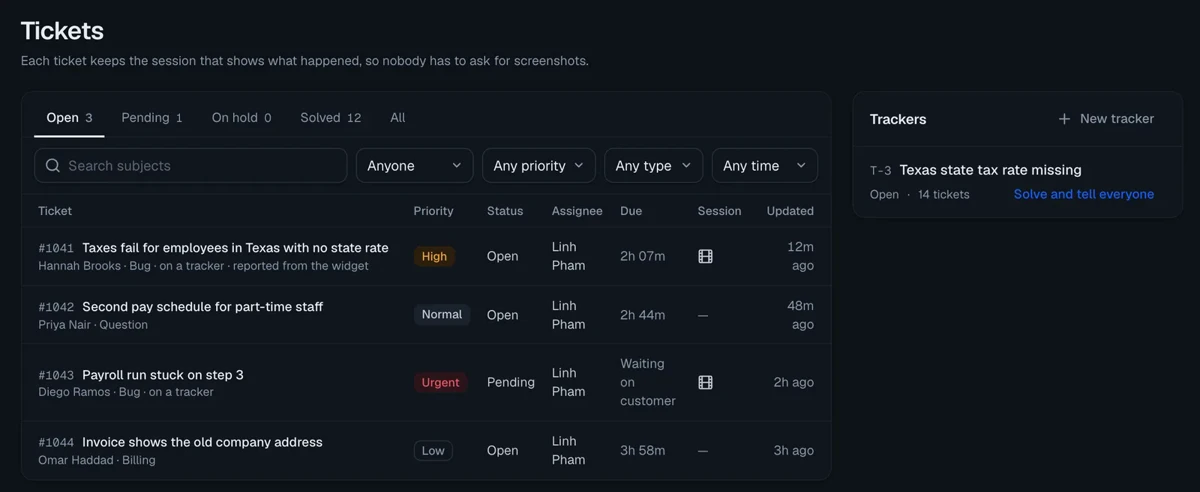
Search existing reports first. If there’s a matching issue, check it for a fix or workaround. Add what you’ve found to that report instead of opening a duplicate.
-
Package the case. Include numbered steps to reproduce it, the expected and actual results, and the setup you used. Add any relevant URLs, error messages, or logs. To point at a moment in the replay, pause there and click Copy link, which is made for this. The link opens at that moment. It only works for workspace members who are allowed to watch recordings.
-
Sort what you know into three short blocks:
- Observed facts: what the customer did and what they saw.
- Failed attempts: the conditions you tested and what happened instead.
- Untested ideas: conditions that might be missing, and the test or information you need to check each one.
If you couldn’t reproduce it, say so plainly. Mark the cause as unconfirmed.
What team leads can check this week
A few checks this week will show whether your team can really work this way:
- Agree on the stopping rule. It’s a habit the team adopts together; nothing in the product forces it.
- Check access. Agents who look at recordings need the Watch session recordings and people live permission.
- Test a handoff. Have another agent follow a case’s steps without help, and rewrite any step where they had to guess.
- Give every open case an owner and a next step. That might be testing a missing condition, asking for a live demo, or gathering one specific detail.
Frequently asked questions
How do I submit a bug report?
Open Report a problem from the Tickets tab in the chat widget, or use the Report a bug tab if you see one. Fill in What went wrong?, choose How bad is it?, and add Details; Steps to reproduce is optional.
In desktop Chrome, Edge, or Firefox, you can select Take a screenshot; on a phone or an unsupported browser, use Attach an image instead. Hide pixelates anything private so no one can read it. Once you select Send report, we’ll confirm that a ticket is open.

We build coview: session replay, co-browsing, chat and calls for support teams. Questions about a post? Ask us from the contact page.