Co-browsing, short for collaborative browsing, lets a support agent and a customer see and use the same webpage during a live support chat or call. The agent can guide the customer on screen. With permission, the agent can also act on the page for them.
To decide when that kind of help is useful, we look at both sides of the session: what the agent clicks and what the customer sees. Customers should know how to approve help, how to end it, and what the agent can’t reach. If you’re choosing a plan, check its session allowances and how long it keeps recordings first.
What is co-browsing, and how does it work?
With co-browsing, a customer and an agent work together on a webpage the customer has allowed. Access stays inside that page or app. It doesn’t reach across the customer’s whole desktop.
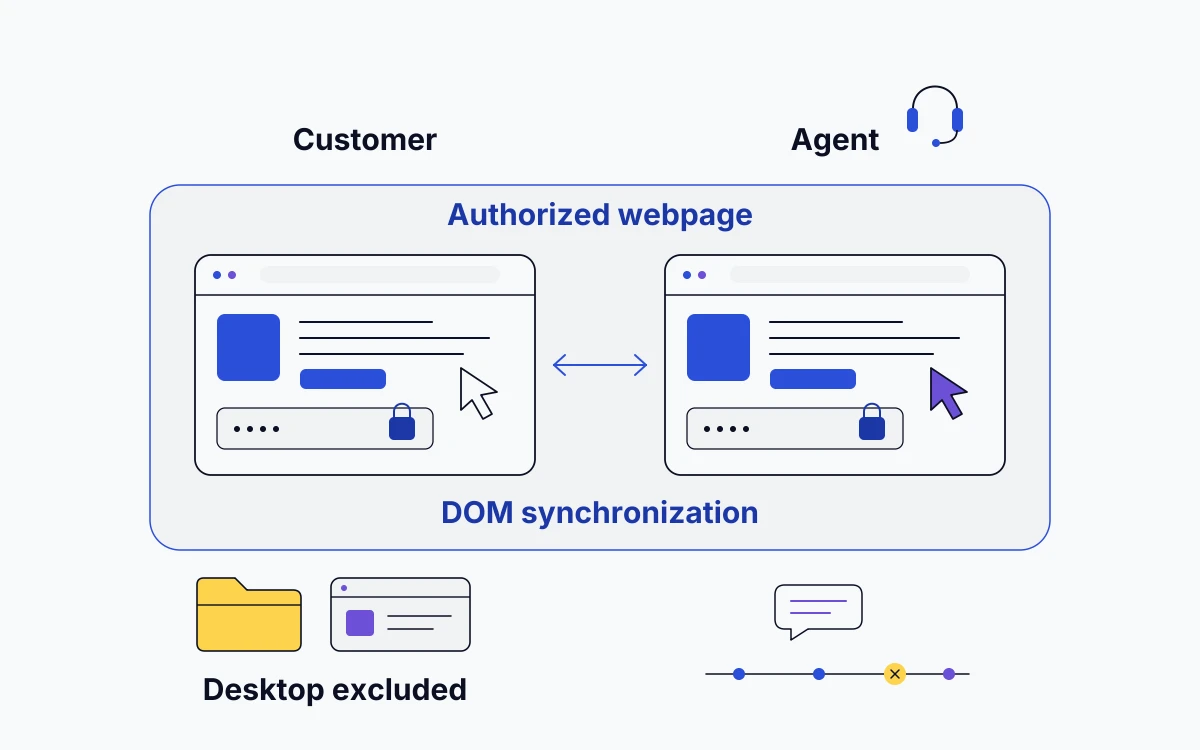
A typical co-browsing tool uses something called DOM synchronization. The DOM is the structure of the page. The tool sends each change to that structure as it happens, so both browsers show the same page without sharing a whole screen. That’s how co-browsing usually works in general. It isn’t a description of how ours is built.
We provide co-browsing through one script tag that you add to any website or web app. Setup happens on your site, so customers get help without installing an extension or downloading anything.
When to point and when to take over
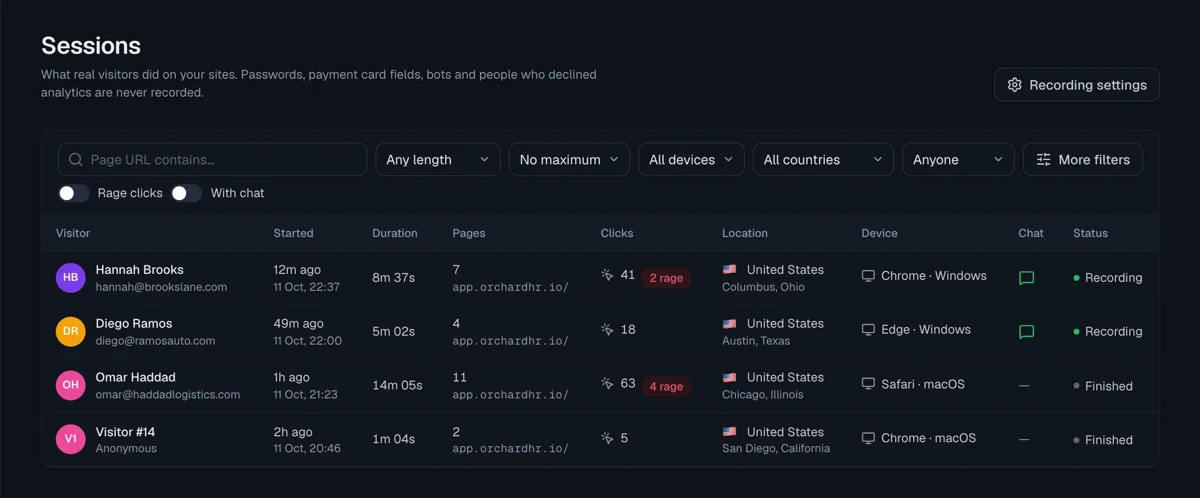
When a customer can’t find the next step, point to it first. Save control for tasks they ask you to do. Bring the on-screen help into the chat or phone call you’re already having, instead of starting a separate explanation.
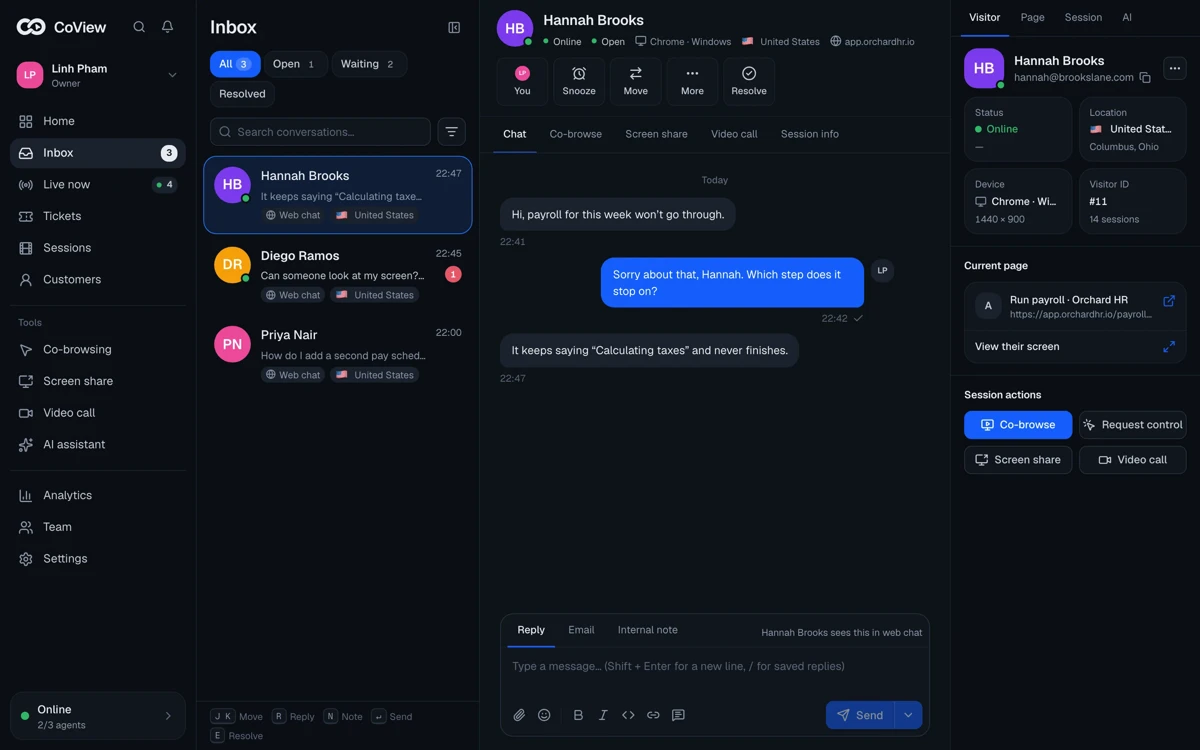
- Forms: point out a required field they skipped and explain what goes there.
- Account settings: lead the customer to the setting they need on a long page.
- Purchases: help them find a product or the next step toward checkout.
A simple line like “I can point to the field so you can fill it in yourself” sets that up.
For long settings pages, or tasks the customer asks us to do for them, there’s our Take over option. It needs its own permission. The customer can see it the whole time.
How to open the visitor’s live tab
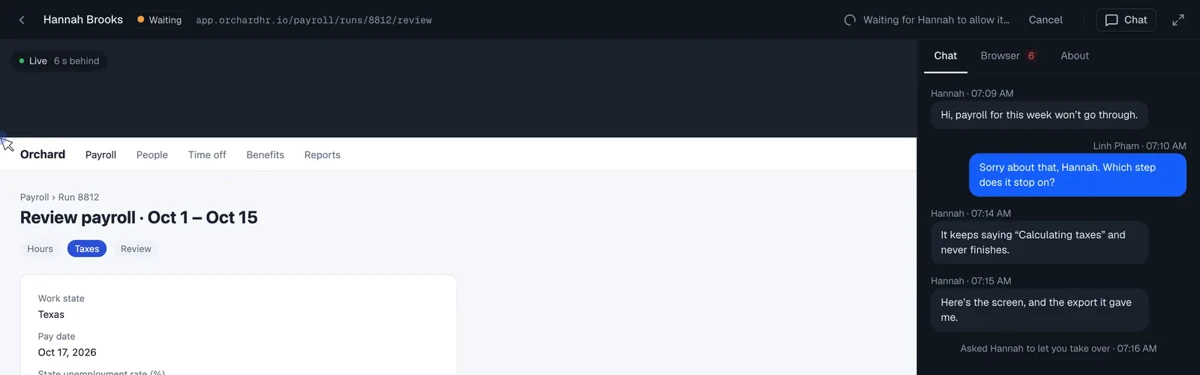
Our co-browsing runs on the live recording. So the visitor has to be on your site and being recorded. The agent also needs the Watch session recordings and people live permission.
- Open Live now, which lists everyone on your sites right now.
- Select the visitor.
- Click Watch live to watch their tab.
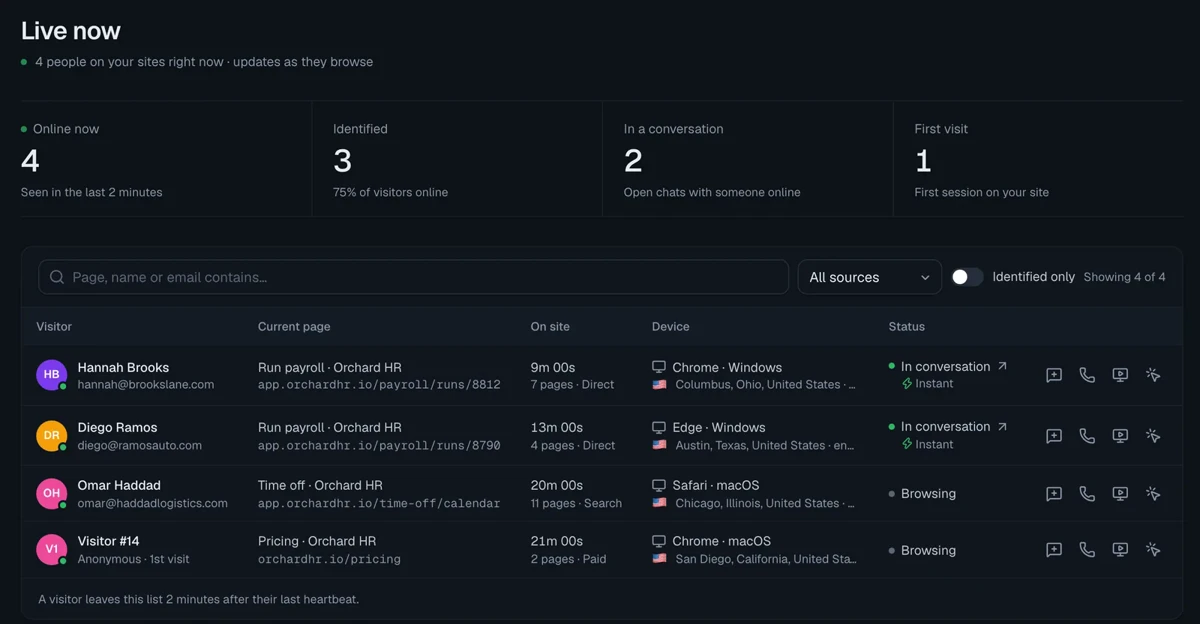
Watching is view-only. Nothing the agent does is sent to the visitor’s page. The visitor can’t see that you’re watching. Live watching hides the same things that session recordings hide.
If you’d rather ask first, turn on Settings › Co-browsing › Ask before watching for a consent-first setup. Then the customer can approve or deny even a silent view. Approval lasts for the rest of the visit in that tab. It covers watching only, not pointing or taking over.
The request can be as plain as: “May I watch this tab to see where you’re stuck? This won’t let me click or type.”
These steps are also on the docs page Live now and watching a visitor.
How to ask for Show me or Take over
Ask only for the level of help the task needs. The visitor approves each level on their own screen, every session.
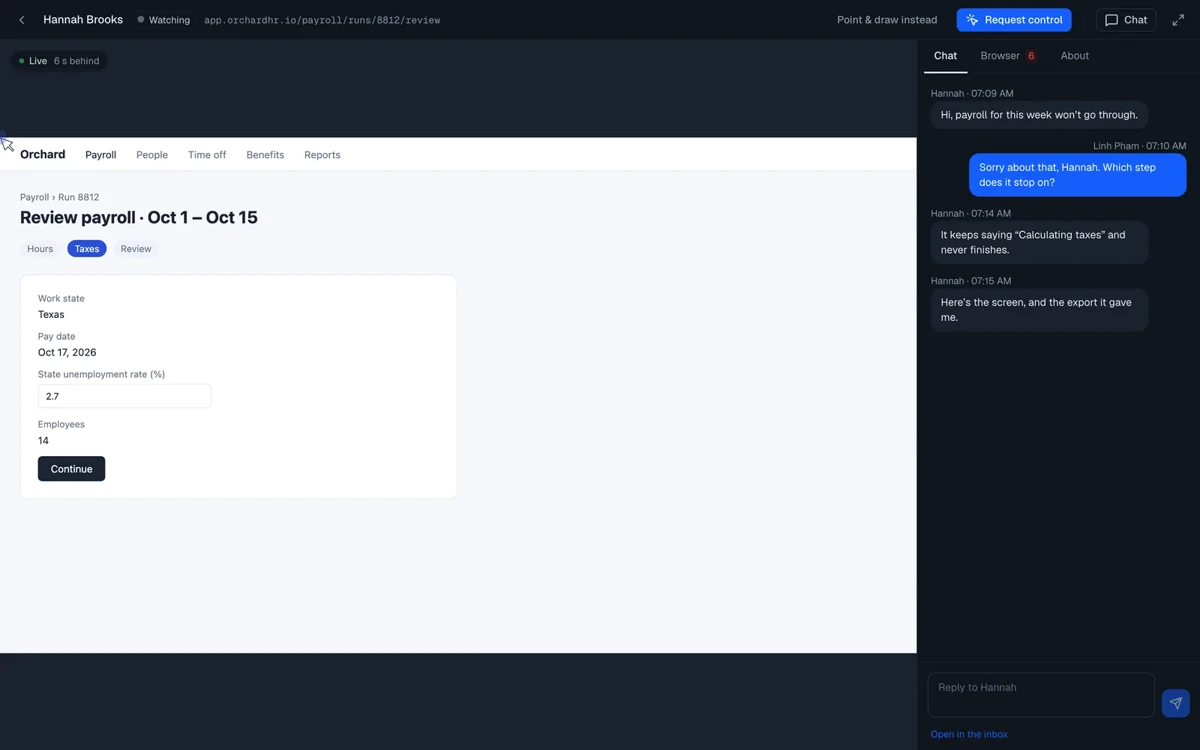
Point and draw while the customer stays in control
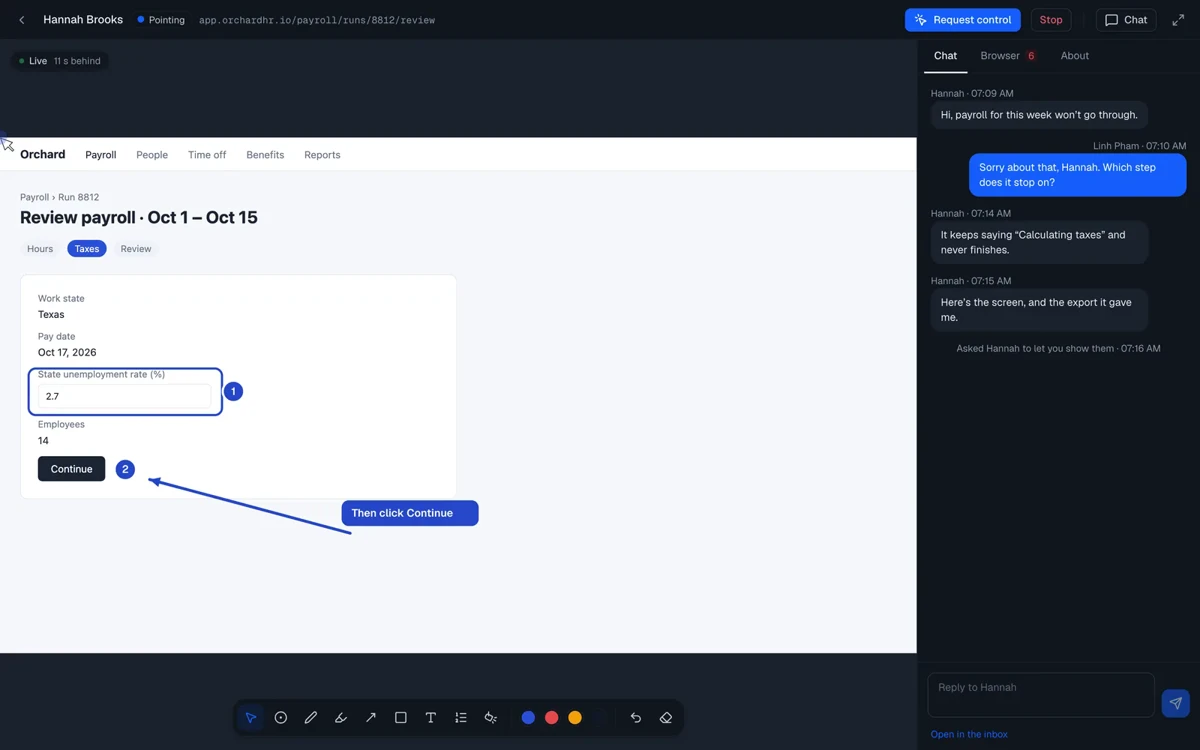
Click Request control, or Point & draw if your role only allows drawing. You keep watching live while you ask to help on the visitor’s screen.
Show me lets you point and draw on the page. The customer keeps control of their mouse and keyboard. Your role needs the Show customers on their screen (point and draw) permission for this.
You might ask: “May I point out the next step? You’ll keep control of your mouse and keyboard.”
Taking over to click, scroll, and type
When pointing won’t do the job, request Take over. It lets you click, scroll, and type in the visitor’s tab. Your role needs the Take over a customer's tab (click and type) permission for it.
The customer then picks Allow, Only let them point, or Deny. If nobody answers, the request disappears after 2 minutes.
A line you can use in the chat: “May I make this change in your tab? You can choose pointing only instead, or stop me at any time.”
While you’re helping, the customer sees who is helping. They also see a Stop · Esc button at the top of their page. Help ends when:
- The customer clicks Stop or presses Esc.
- The agent stops or leaves the session screen.
- The agent is idle for the set time limit, which is 10 minutes by default.
All of these controls and permissions are on the docs page Show me and Take over.
What the agent can’t reach
Even with Take over approved, the customer types sensitive details themselves. We mask password and card fields in the visitor’s browser, plus anything marked with data-coview-mask. Masking means the content is hidden before it leaves the browser. This works in replays and live viewing alike, so that content never reaches us.
Take over doesn’t work in password, card, bank, or tax-number fields. It also doesn’t work in fields inside elements marked data-coview-mask. Customers fill those in themselves. When the agent reaches one, they can say: “Please enter those details yourself. I can help with the next step.”
Help carries on when the visitor moves to another page of your site in the same tab. But Take over can’t reach another site or our own chat widget. We also write each request and each session end to the audit log. These are specific limits. They aren’t a promise of total security.
Our consent and masking articles go into more detail. The Show me and Take over docs page covers the limits on moving between pages and the audit log.
How to pick a plan
Plans have two separate allowances: one for recorded visits and one for co-browsing sessions. Look at seats and how long recordings are kept as well. That way the plan covers both live help and reviewing sessions later.
| Limit | Free | Starter |
|---|---|---|
| Price | $0 | $19 per seat monthly, billed yearly |
| Seats | Up to 2 | Up to 10 |
| Recorded sessions monthly | 1,000 | 5,000 |
| Recording retention | 7 days | 30 days |
| Co-browsing sessions monthly | 10 | Unlimited |
We count a recorded session as one visit by one person, however many pages they open. The two allowances are separate. So a plan with unlimited co-browsing still limits how many visits it records.
Free is enough to try co-browsing if its allowances cover you. Starter makes sense once you need more seats, more live help, or recordings kept for longer. The other plans and their current terms are on our pricing page.
One rule for every co-browsing session
Point first. Ask for Take over only when you need it. Let the customer type anything sensitive themselves.

We build coview: session replay, co-browsing, chat and calls for support teams. Questions about a post? Ask us from the contact page.