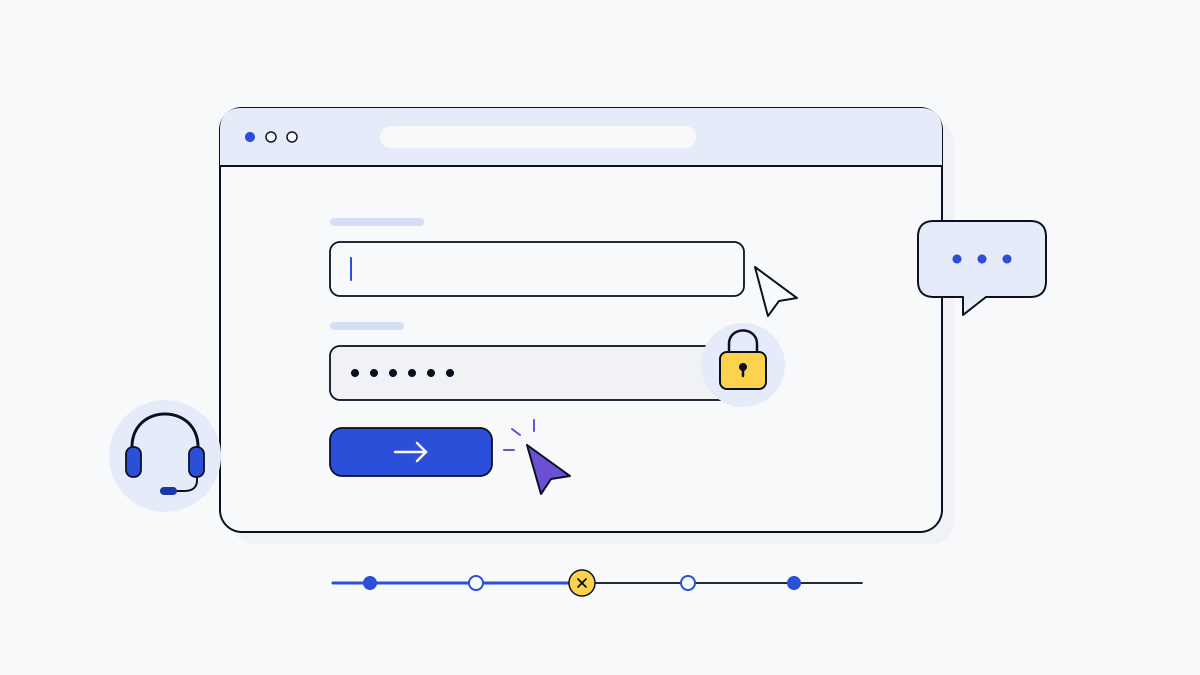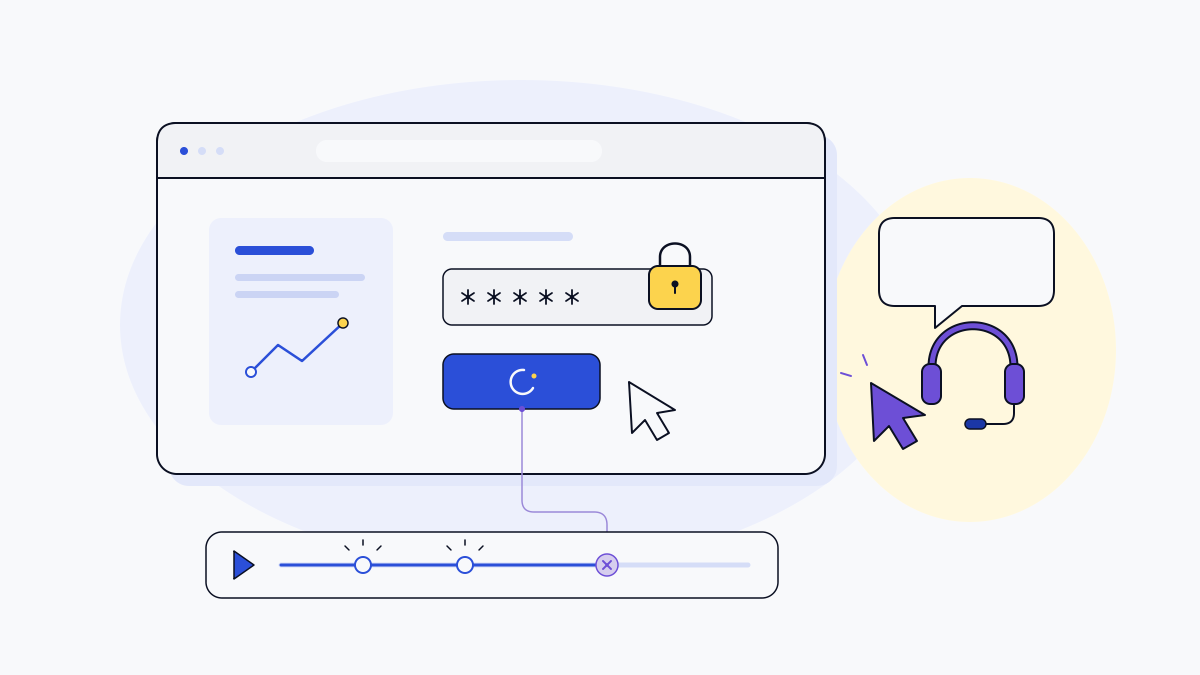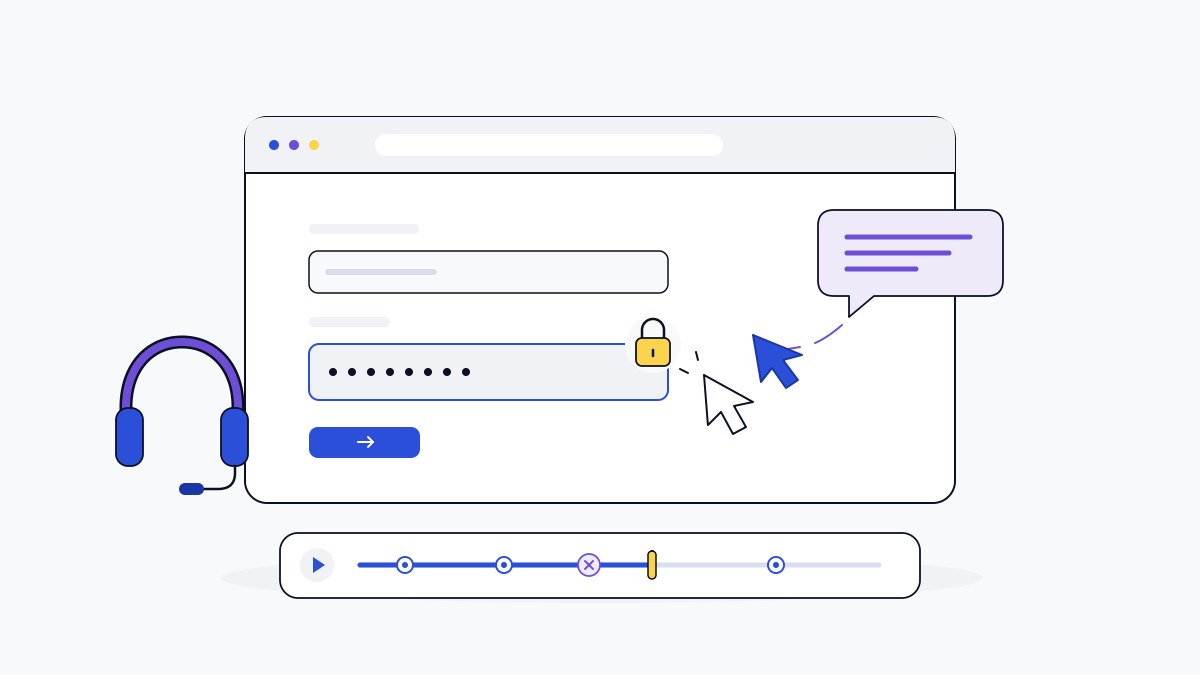
Session replay tools rebuild a website visit so a support agent can play it back like a video. Nobody records the screen. Instead, the tool uses DOM snapshots (records of how the page was built) and event streams (logs of what the customer did). The customer just uses the website and installs nothing. The browser events and page changes show what happened. Sensitive data still has to be masked, which means hidden before it’s collected.
The simplest way to judge a tool is to test it on a real ticket. Find the customer’s visit, work out where it failed, and keep what the next person will need. The same test shows whether the tool records enough visits, keeps them long enough and protects private data well enough for your support team. It also shows which questions a replay can’t answer.
How session replay tools work for support
Support needs one visit: the steps around a single customer’s problem. Heatmaps add up activity across many visits. That’s useful, but for a different question.
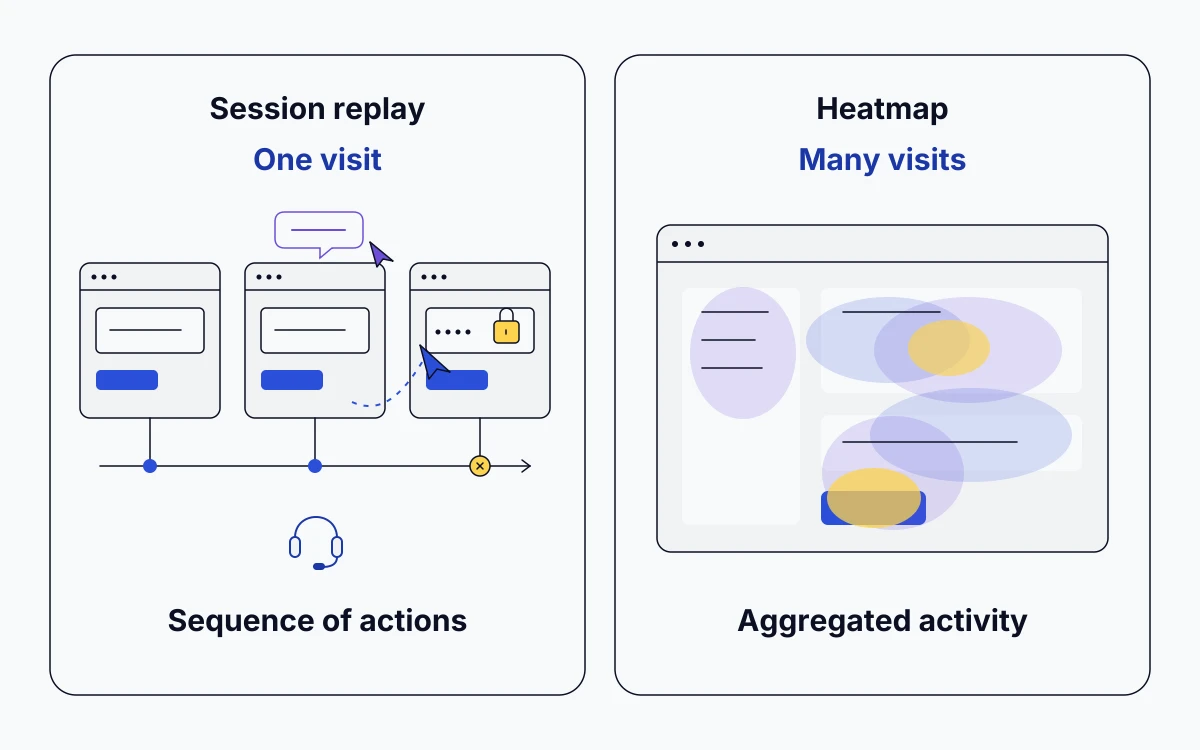
A DOM snapshot records the page’s structure at one moment. The event stream adds what changed after it: clicks, scrolls, moves to new pages and JavaScript errors. Those records travel from the customer’s browser to the agent’s viewer. The viewer turns them back into playback that looks like a video. So the agent is watching a rebuild of the visit, not screen footage.
When we look at a tool, we first check that it shows each single visit in order. Overall patterns, scores and alerts belong to a different kind of product. Our “What is session replay?” article goes deeper into how it works.
When a replay helps, and when it won’t
Open a session when the ticket asks something the visit can answer. Before you add replays to the support queue, decide who reviews sessions and when they have time to do it.
- Customer confusion: look for the point where the customer drifted away from the task they described. A replay link in the ticket gives the next agent the full picture. They don’t have to ask the customer for screenshots or the whole story again.
- Checkout problems: find where progress stopped or an action failed. That tells you what went wrong in one visit. Whether it cost you sales or revenue is a separate question to measure.
- Errors on your live site: look at what happened just before the failure. Check which network requests failed and what showed up in the console. Send the engineer the replay link with your question, so they know what to look for.
An agent can say: “I’ll review the visit to see what happened before checkout stopped. You don’t need to describe those steps again.”
If nobody owns the review, or nobody can say what the session should answer, skip playback. Watching without a question just adds one more queue to clear.
How to review a customer’s visit in coview
A chat that needs looking into is the best way to test every step, playback included. When the issue needs more time than the chat allows, we turn it into a ticket with the evidence attached.
- Install our script. It’s one script tag on a website or web app. That includes React, Next.js, Vue, Angular, Shopify, WordPress and Webflow sites. The setup guide is Install coview on your site.
- Open playback for the visit you’re looking into. The agent sees pages, clicks, scrolls and rage clicks (fast, repeated clicks on one spot). Meanwhile the customer keeps using their own screen as normal. Watch a recorded session covers playback.
- Go to the part of the timeline around the reported failure. Clicks, console errors and network requests sit on the same timeline. So you can start from the action the customer reported and read the events next to it. An error nearby is a lead to follow. It isn’t the cause yet.
- Turn the open chat into a ticket. The session, errors and steps stay attached. The next person can pick up the work without asking the customer to go through it again. The docs page for this is Tickets, priorities and response targets.
An agent can say: “This needs more investigation. I’ll turn our chat into a ticket with the session and error details so the next person has the context.”
Pick a plan that records and keeps enough visits
The right plan records the visits your team needs to look into. It also keeps them long enough to hand them over. The session has to still be there when an engineer opens the ticket. That depends more on how long recordings are kept than on price.
We count one recorded session as one person’s visit, however many pages they open. Bots aren’t counted, and neither are visits where no person showed up.
| Plan | Price | Seats | Recorded sessions per month | Retention |
|---|---|---|---|---|
| Free | $0 | Up to 2 | 1,000 | 7 days |
| Starter | $19 per seat monthly, billed yearly | Up to 10 | 5,000 | 30 days |
| Growth | $49* | Up to 50 | 25,000 | 90 days |
The Growth price above doesn’t say how often it’s billed or whether it’s per seat.
Replay is part of every plan. A new workspace starts with a 14-day trial of every feature, with no card needed. Then it moves to Free unless you pick a plan.
Before you approve the budget, check how many visits are covered, how long they’re kept and how the bill is worked out:
- Compare your monthly visits with how many sessions the plan records. Ask what share of visits gets recorded. If the tool only records a sample, the one visit you need may be missing.
- Keep recordings long enough to cover the whole gap from the visit to the support report to the engineering review. The first reply is only the start of that gap.
- Find out whether pricing is per seat, per session or per event before you compare totals. Budget for the people who need access as well as the visits they’ll review.
How to decide on a replay tool
A replay tool is worth keeping when its recordings are accurate, it supports your platforms and it passes your privacy approval. Start the privacy and security review before the trial. Don’t roll the tool out until it passes.
- Compare a replay with the real visit. The page and the order of actions should be close enough for an agent to understand the reported failure.
- Look for JavaScript errors, network failures and console logs next to the replay. Engineers need those, not just the visible problem, to investigate.
- Confirm the tool supports the websites and web apps your customers use. Replay for native mobile apps is a separate question. If you need it, check it on its own. Don’t assume it works because web support does.
- Confirm masking before collection. Find out how the tool handles sensitive elements, text and the data inside network requests. In coview, password and card fields, plus elements marked
data-coview-mask, are masked in the visitor’s browser in replay and live views. So that content never reaches us. Keep our masking article open during the review. Fix any sensitive data it leaves uncovered before you roll out.
What agents tell customers can stay plain: “I'll review the visit to understand what happened.”

We build coview: session replay, co-browsing, chat and calls for support teams. Questions about a post? Ask us from the contact page.