Session replay rebuilds what a visitor did on a website or app and plays it back like a video. Support teams use it to see the steps that led to a problem, without asking the customer to describe every click.
Start by finding the customer’s recorded visit. Look at where things went wrong, then share that exact moment with someone who can help. Replay doesn’t film the visitor’s screen, so also check what it leaves out. Review the privacy settings too. Then check your recording limits and retention (how long recordings are kept), so you know the visit is still there to watch.
What is session replay, and when does support need it?
Use replay when the order of the customer’s actions matters for finding the cause. It lets you see what they did. What they meant to do still has to come from the customer.
Session recording is the step that collects the data. It captures the Document Object Model (DOM), which is the structure and current state of a page. It also captures changes to the page and events such as clicks, scrolls, form inputs and moving between pages. Session replay is the step that rebuilds the visit. It applies those events and page changes in time order to create a playback you can watch. Neither step needs a real video of the screen.
For support, that sequence can turn a vague report into something you can act on:
- Checkout problems: look at what happened as a customer moved through checkout. A visit that ended without a purchase doesn’t explain what went wrong on its own.
- An error report: look at the actions just before the error, so an engineer has a set of steps to look into.
Replay adds the story behind counts such as page views and clicks. It can show a customer trying the same action again and again. But it can’t show why they tried again or what they expected. Ask the customer when that difference affects the fix.
Decide what to record before you start
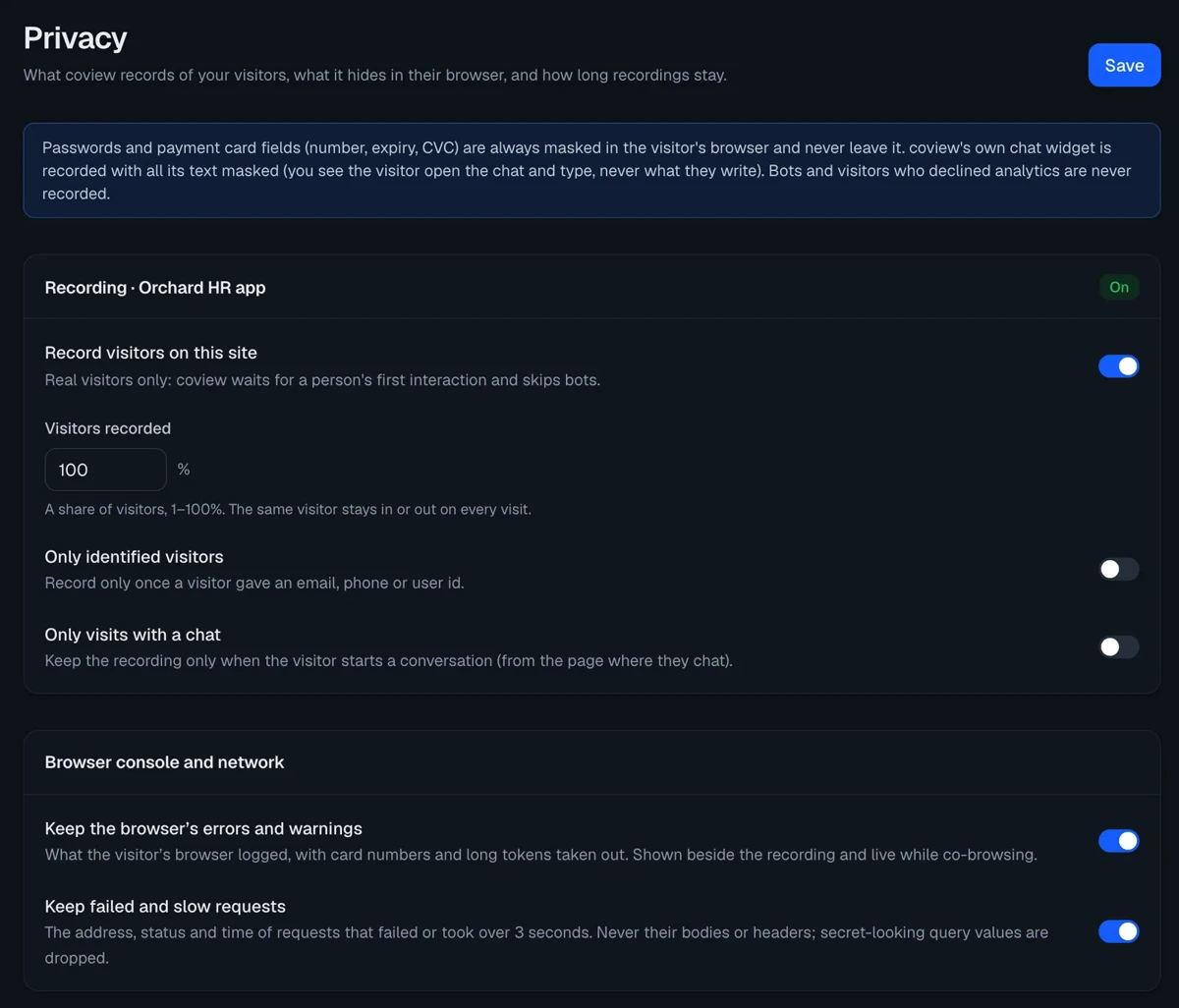
As a team, agree on which visits to collect and keep before agents start watching them. We mask private data in the visitor’s browser before anything is sent.
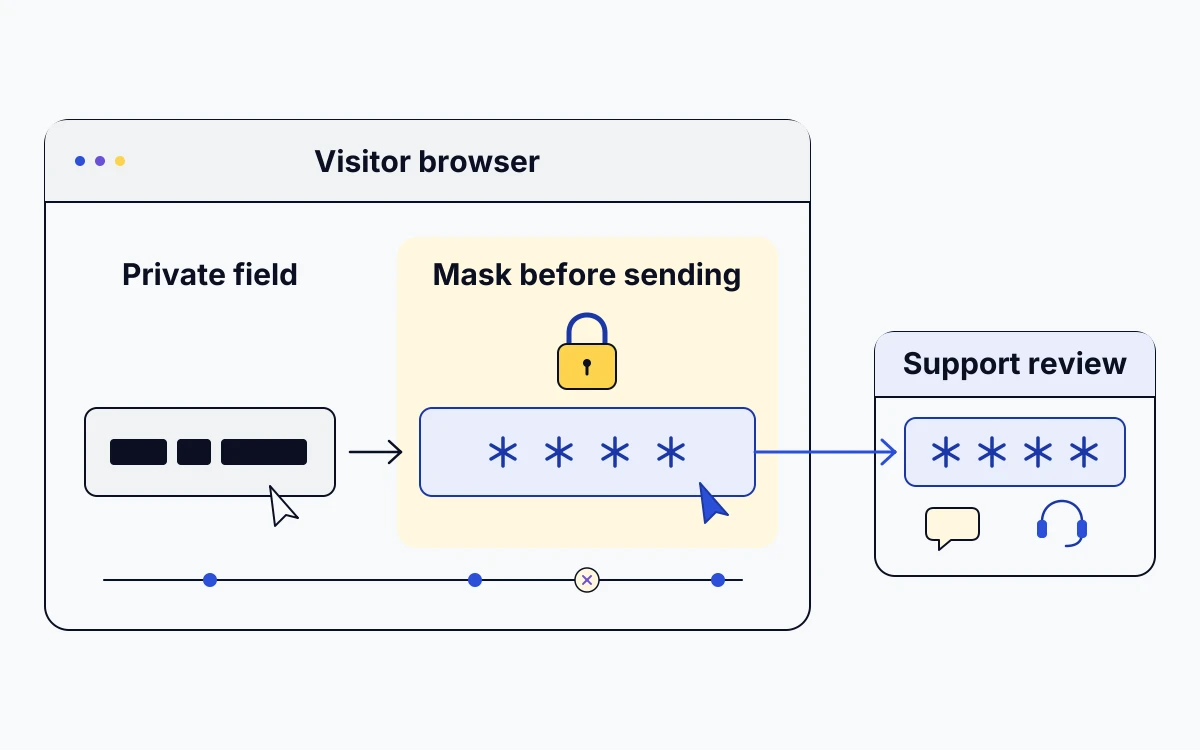
In masked fields, agents see one asterisk per character instead of the real value. We always mask passwords, hidden fields, payment card fields, one-time codes, and fields with IDs or names that look sensitive. We also mask values that contain card numbers, typing in the chat widget, and query parameters in the address that look secret. Content drawn on a canvas is not recorded. Neither are iframes (embedded frames) from other domains.
Recording is on by default. When a visitor declines analytics, recording stops at once and any events waiting to be sent are dropped. Only a signal that the visitor is present gets sent, and the chat widget keeps working.
Use the collection settings to choose which visits to record and keep:
- Sampling: record 1–100% of visitors. The same visitor stays in or out on every visit.
- Identified-only recording: record only visitors you have identified.
- Chat-only retention: keep recordings only for visits that include a chat.
- Excluded paths: leave the page paths you list out of recording.
The docs page Privacy, masking and retention covers these settings and explains in detail how masking works.
Find the customer's recorded visit
If you know who reported the problem, start with the customer filter. When you’re sorting through a queue, combine filters for device, behavior and page. Our setup uses one script tag on your website or web app. Customers don’t need an extension or a download.
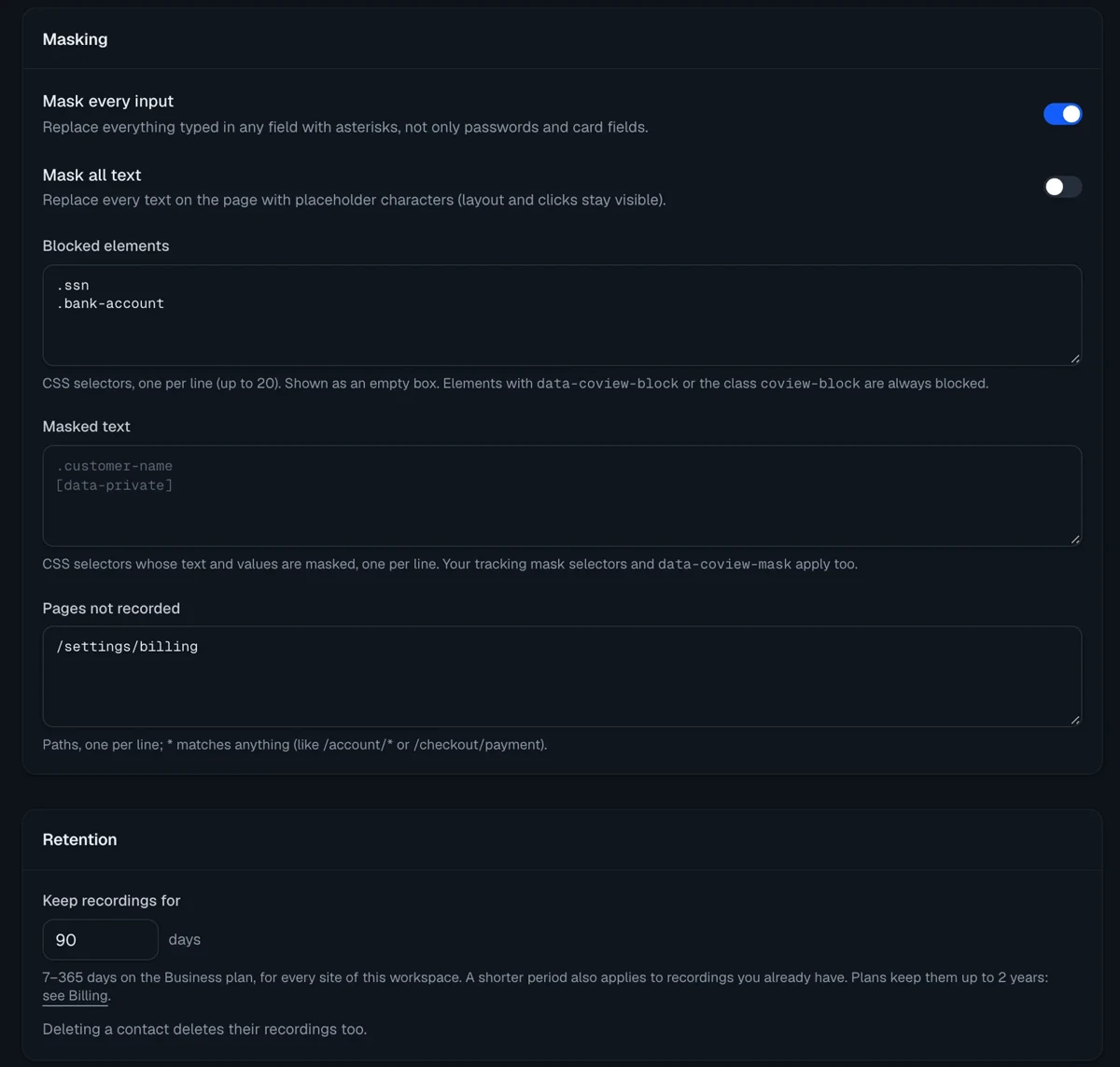
- Open Sessions. Recordings show newest first, and the list updates while you have it open.
- Click Customer in the filter bar. Type at least two letters of the customer’s name or email, then select the customer.
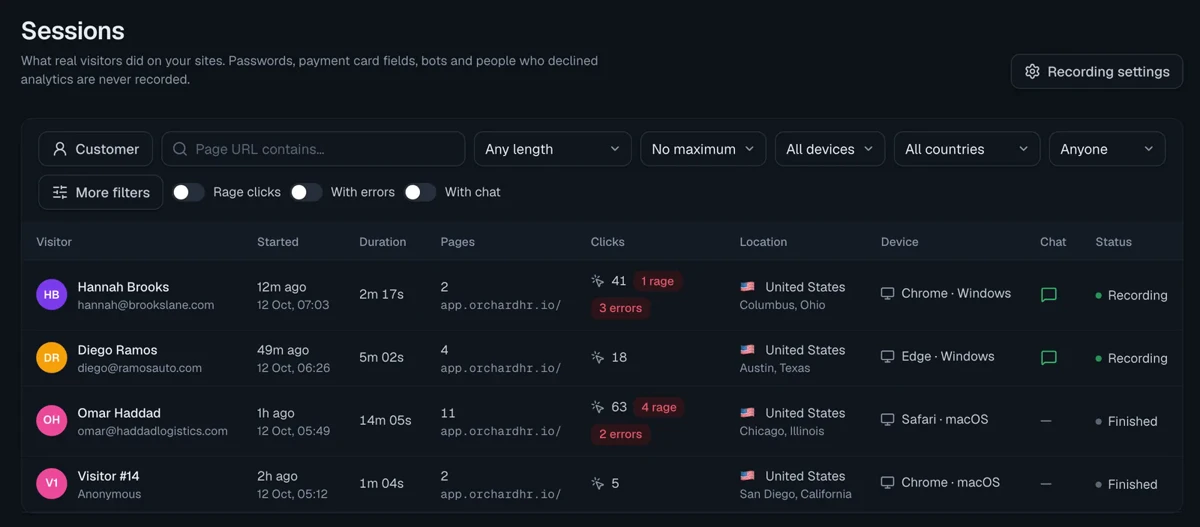
- To look into checkout problems, combine Mobile, Rage clicks and
/checkout. Rage clicks means clicking the same spot over and over. Together, these filters find phone visitors who got stuck at checkout. - Click a recording row to play it.
The docs page Find the sessions you need covers these filters. If a visit is missing, first check the collection settings above. Then check whether the recording has expired or been deleted. Visits from bots and automated browsers are left out too.
Replay the problem and share the moment
Use one rule when you hand a problem to someone else. Share the moment it failed, the steps that led there, what should have happened and what you saw.
To watch recordings, you need the Watch session recordings and people live permission. Our recordings follow one browser tab across the pages of a site. A new recording starts after 30 minutes with no activity. So when a report spans more than one visit, look in more than one recording.
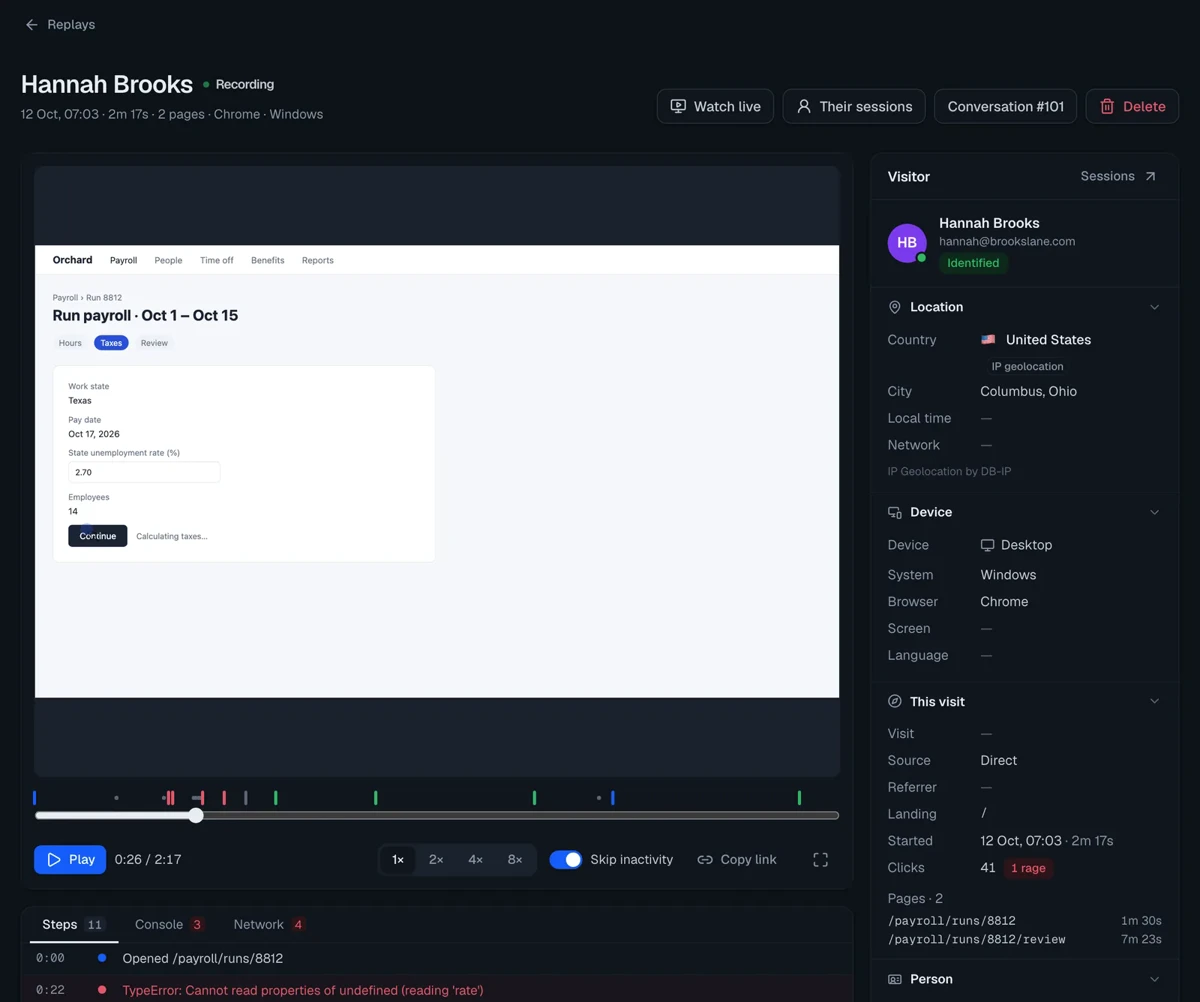
- Watch the lead-up with Play / Pause at a speed of 1×, 2×, 4× or 8×. Skip inactivity is on by default. Drag along the timeline to move through the visit, or click a marker to jump to it.
- Look at the problem itself. When you click a rage click or an error, playback starts two seconds before it, so you can see what led up to it.
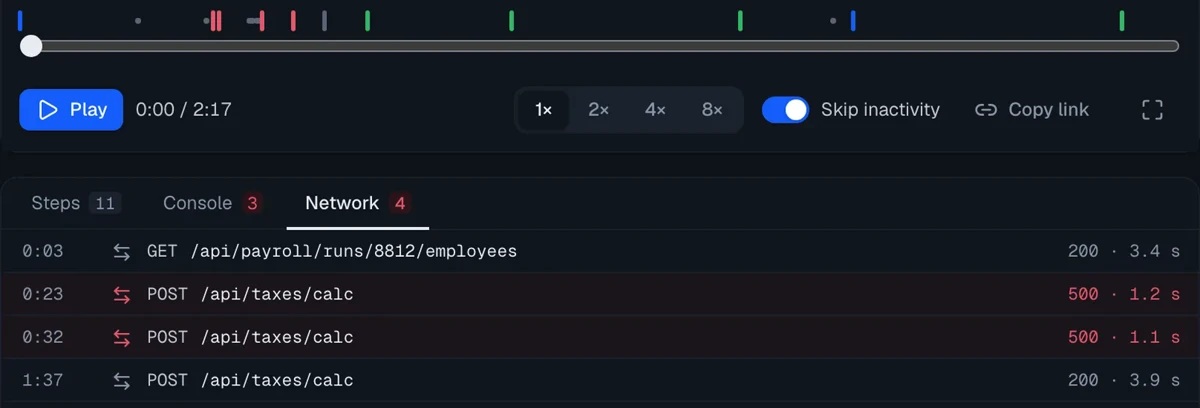
- Check the details under the player by opening Steps, Console or Network. Click any row to jump to that moment. Request bodies and headers are never kept. You can turn off console and network collection under Settings › Privacy › Browser console and network.
- Pause at the right moment and click Copy link. The link opens that moment only for workspace members who are allowed to watch recordings. When you pass it to engineering, add what you expected to happen and what you saw.
The docs page Watch a recorded session covers these controls.
Pick enough sessions and storage time
Pick a plan that covers your seats and recorded visits. It should also keep recordings long enough for late reports and the time you need to look into them. If a recording expires before the customer contacts support, it can’t help explain the problem.
Free costs $0. Starter costs $19 per seat per month, billed yearly.
| Plan | Seats | Recorded sessions per month | Retention |
|---|---|---|---|
| Free | Up to 2 | 1,000 | 7 days |
| Starter | Up to 10 | 5,000 | 30 days |
| Growth | Up to 50 | 25,000 | 90 days |
We count one recorded session as one visit by one person, no matter how many pages they open. Opening another page does not count as another session. Bots and visits where no person showed up do not count.
Checklist before you watch or switch to live help
A simple team rule: use replay to understand problems that already happened. Ask for co-browsing, which means working on the customer’s live page together with them, when they need help on the page right now. Skip replay when the customer’s explanation is enough to solve the issue.
Before you open a recording, check these points:
- Know which problem you need to understand.
- Check that the visit belongs to the person you’re helping.
- Make sure you, and anyone you share the recording with, have permission to view it.
- Check that the visit was recorded and is still stored, within the recording limits set earlier.
Skip replay if what you need is missing or was left out of the recording. Replay also isn’t the right tool when the customer needs help on the page right now.
Live watching and co-browsing only work for visitors who are being recorded. If the visitor declined analytics or is excluded from recording, keep helping them through chat.
For live guidance, request Show me to point at or highlight things. If you need to click or type, request Take over separately. The customer must agree to each one and can stop either with Esc. See Co-browsing should ask first for more on that limit.
Voice and video calls are never recorded. We log only who called, when, and for how long.
An agent can say: “If you want live guidance, I can request Show me. You can stop it with Esc.”
Frequently asked questions
Is session replay legal?
There is no simple yes. Courts disagree on how the California Invasion of Privacy Act (CIPA) applies to session replay. That includes its rules on eavesdropping and on pen registers, which are tools that record who a person contacts. Before you turn on recording, go over the disclosure and consent rules with a qualified lawyer.
Tell visitors clearly which interactions you collect. Name your vendors, and explain why you collect the data and how you use it. Check whether tracking must wait until the visitor actively accepts it. Collect only what those purposes need. Masking on its own doesn’t settle whether recording is legal.

We build coview: session replay, co-browsing, chat and calls for support teams. Questions about a post? Ask us from the contact page.