Session replay for support: Behavior analysis versus ticket context
Session replay for support serves two needs. You can study behavior across visits or review one customer’s visit alongside their conversation to resolve a problem.
What replay shows an agent
An agent sees a page rebuilt from events captured in the visitor’s browser. These events describe the page’s content and changes. Rebuilding the page from them is called DOM reconstruction. The result is not a film of the customer’s screen.
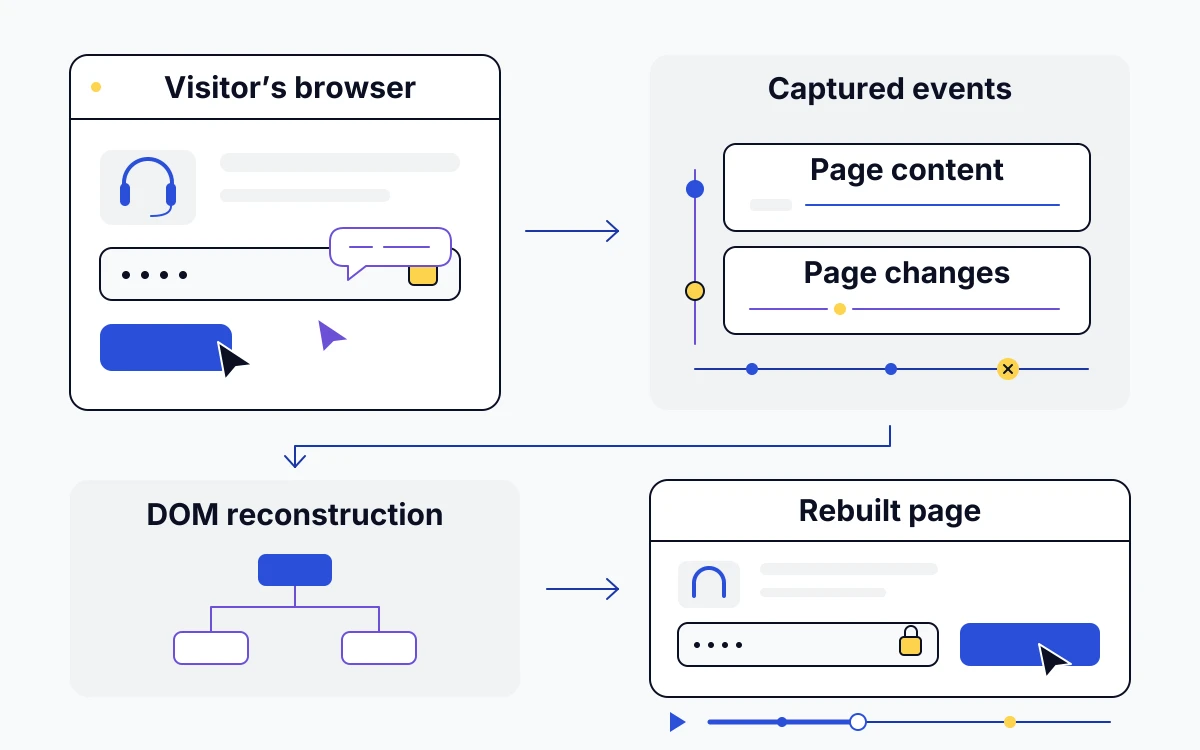
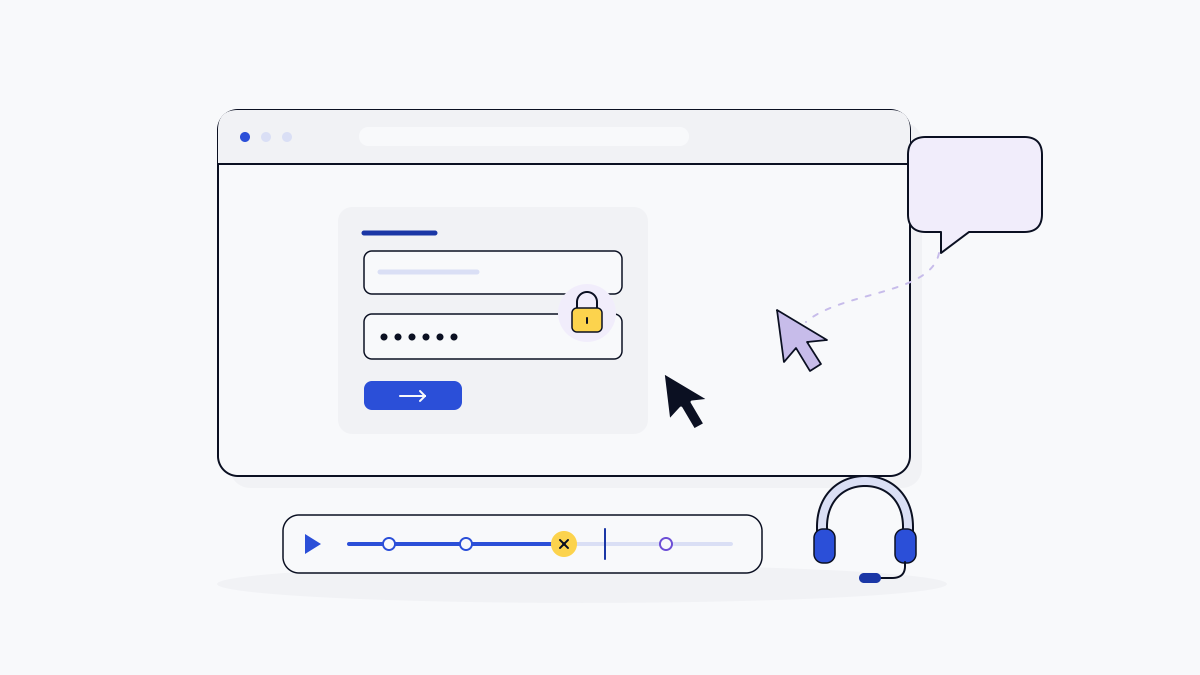
Captured events travel from the visitor’s browser to a replay viewer. The viewer rebuilds the page content, including clicks, scrolling, and actions in forms. You can follow where the customer clicked, what they scrolled past, and how they used a form.
For a reported form problem, this sequence helps you find the step to investigate. Comparing it with the customer’s description helps you understand what happened and what they expected. The replay shows a click. The conversation explains what the customer expected that click to do.
Use replay to review past behavior. For help on the customer’s current page, use live co-browsing.
When behavior analysis needs conversation context
Use behavior analysis, the study of people’s actions, to find steps that need attention. To solve a reported problem, connect the recorded visit to the customer’s conversation.
- Product investigation: Visits can show where people quit a series of steps or first try a feature. These visits can reveal confusing steps. Clicks and scrolling can also help explain why fewer people use a feature than expected.
- Individual support resolution: Review what the customer did alongside their report and what they wanted to do. This helps you choose a useful answer, write up the problem, or pass it to an engineer.
For the reported form problem, the next step depends on what happened. If the customer misunderstood a field, help text beside it may be useful. If the form failed to accept valid input, the product may need a fix. The conversation and visit together help you decide what to do.
An agent can ask: “What did you expect to happen after submitting the form?” The answer gives the engineer something specific to investigate.
A reconstructed replay rebuilds a visit from captured page data. It can show some parts of a page inaccurately. These include complex CSS animations (movement controlled by page styling) and canvas elements (areas drawn by code). Changing page content can also appear inaccurately. When replay cannot accurately show an action, confirm that step using the customer’s description or another source before deciding what failed.
Move from a recorded visit to a supported ticket
When a chat needs more time, turn it into a ticket so another agent or engineer can continue the investigation.
In coview, we put session replay (a visit you can watch again), co-browsing (viewing the site together), live chat, voice and video calls, and tickets on one shared timeline.
- Add one script tag, a short piece of code, to your site. The documentation page “Install coview on your site” covers this step. Your customer keeps using the website without installing anything. Your agent reviews the visit from the support desk.
- Review the visit alongside the conversation. “Watch a recorded session” explains how to check pages, clicks, scrolls, and rage clicks (repeated clicks in frustration). Console errors (errors reported by the browser) appear on the same timeline. So do network requests, which are messages the site sends to fetch or send data. Compare these events with the customer’s report to note the steps before the problem. An error near a failed action gives the engineer a place to look, though it doesn’t explain the cause.
- When the chat needs more time, move the unfinished work into a ticket. Attach the session, errors, and steps. “Tickets, priorities and response targets” explains how to handle tickets. Include what the customer expected to happen, as described in the conversation. That gives the next person both the steps and the customer’s goal.
An agent can say: “This needs more investigation. I’ll keep the session and the steps you described with the ticket so you don’t have to explain them again.”
Check coview’s privacy rules, plan limits, and live help options
Before using replay to review a visit, check that sensitive content is hidden. Make sure the visit will still be available when your team looks into the issue. If the visit history cannot clear up the customer’s confusion, ask permission for live help.
-
Check masking, which hides sensitive information, before collecting visits that include it. Password and card fields, plus content marked with
data-coview-mask, are masked in the visitor’s browser. This applies to replay and live views; that content never reaches us. Other sensitive page content needs the same attribute, a marker in the page’s code, before you collect those visits. -
Match the number of visits you can store and how long you keep them to your support queue. In coview, one recorded session means one person’s visit, across however many pages they open. Compare the monthly allowance with your visit volume. Retention is how long visits stay available; compare these coview plan limits with how long investigations stay open:
- Free: up to 2 seats, 1,000 recorded sessions monthly, 7-day retention.
- Starter: up to 10 seats, 5,000 recorded sessions monthly, 30-day retention.
- Growth: up to 50 seats, 25,000 recorded sessions monthly, 90-day retention.
-
Ask separately for each level of live help. With Show me, the agent can point, draw, highlight, and number steps on the customer’s page. Take over requires separate permission to click and type in that tab only. The customer can stop either with Esc. Agents never type into password, card, bank, or tax-number fields.
An agent can say: “May I point out the next step? You can stop with Esc.”

We build coview: session replay, co-browsing, chat and calls for support teams. Questions about a post? Ask us from the contact page.