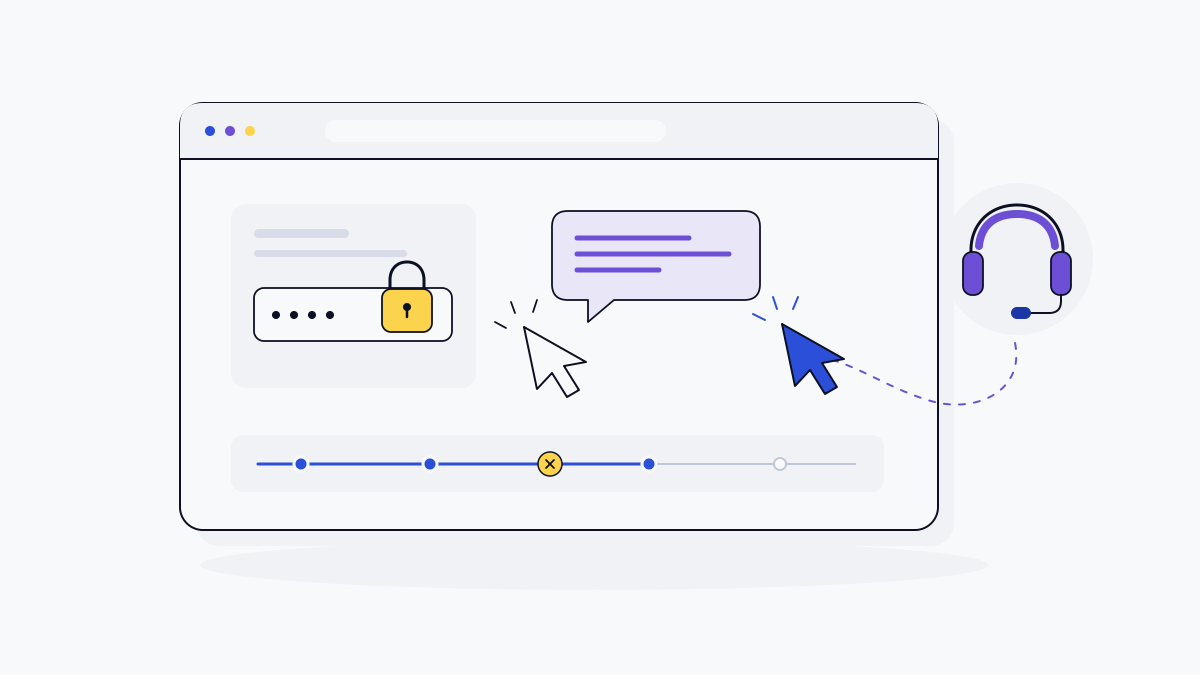
The answer to “is co browsing safe” depends on the protections in place. Access must be limited, and masking must hide sensitive information. The customer must clearly approve the help and be able to stop it. Co-browsing lets an agent help on a shared web page. The name alone does not guarantee those protections.
Before your team uses it, check what agents can see and what masking keeps private. You also need to know which actions require separate permission. Set clear limits on what agents may do during a session. Those limits should keep customers in charge of entering sensitive information and making final submissions.
What the agent can see—and what stays private
Agents see what is on the shared page while customers keep it open. Sharing one page gives the agent a narrower view than sharing an entire screen. A shared screen may reveal other information displayed on it.
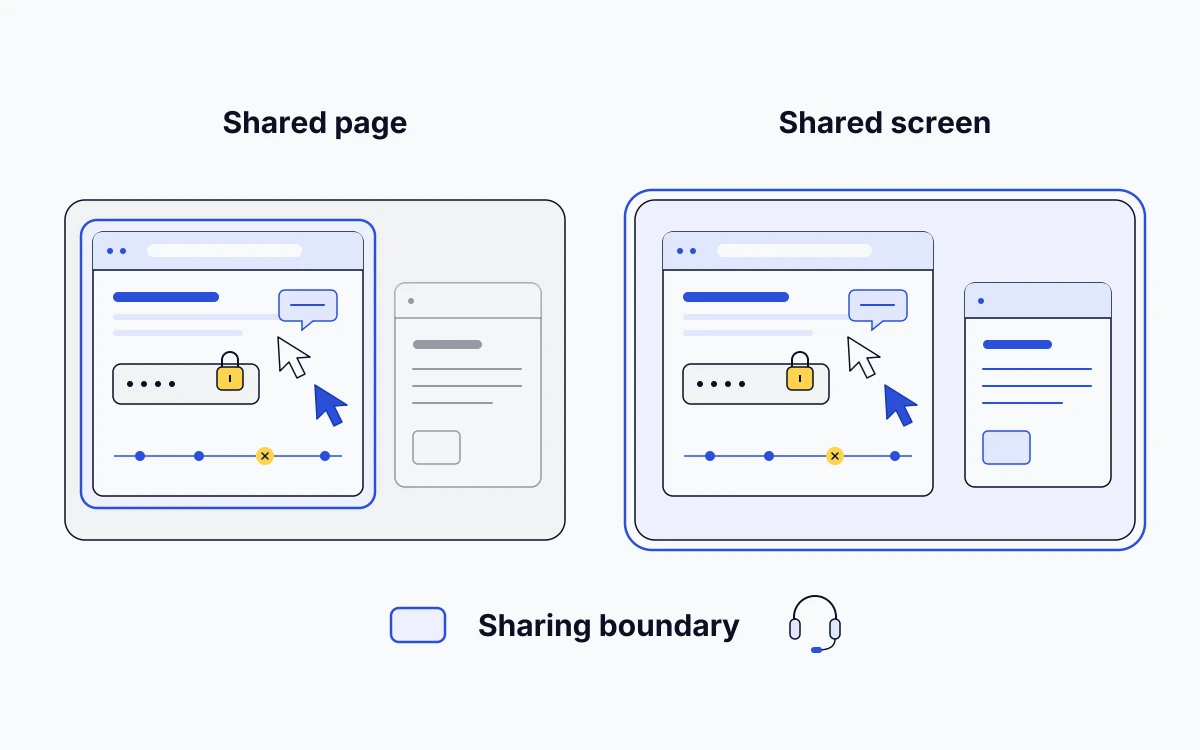
DOM-based sharing copies the page structure, called the DOM, in the visitor’s browser. That structure is used to reproduce how the page looks. A copy of this view goes to the agent. The customer does not have to install software. How the tool handles sensitive information depends on how it is built.
We mask password and card fields, plus anything marked with data-coview-mask, in the visitor’s browser. This hides their contents for both replays and live sessions. That masked information never reaches coview.
When checking safety, look at these three controls separately:
- Hidden information: Which fields have their contents hidden before they leave the customer’s browser?
- Permitted actions: Can the agent only point at the page, or also click and type?
- Authorization: Has the customer approved that level of help?
Masking protects information. Permissions set which actions an agent can take. When choosing a tool, check its rules for viewing and control separately. This applies even when only one page is shared. A customer’s permission to view a page should never count as permission to control it.
When shared guidance helps—and when it does not
Offer shared guidance when page instructions leave the customer confused. Show them where to go next, and limit access to what the support task needs.
- Useful for finding the next step. If the customer cannot find the right section of the page, pointing can save another written description.
- Useful for finding your way through documents. A financial advisor can guide a client through a document while sensitive information stays hidden. Before sharing the view, check that private sections are masked, meaning hidden from view.
- Unsuitable when explaining a step would expose private details. Leave the customer in control of sensitive entries. Guide them using labels and nearby instructions that you can both see.
- Unsuitable for unexpected requests to access your desktop. Reject unexpected requests to download software that lets someone access your desktop. To check that the support request is real, use a support channel you already know. Do not use contact details supplied in the request.
An agent can say: “I can point out the section while your private details stay hidden. Would that help?”
Ask permission before pointing or taking control
Ask separately for permission to point and permission to click or type. Before you begin, explain how the customer can stop either level of assistance.
- Select Show me. In coview, this asks the customer for permission to let you point, draw, highlight, and number steps on their page. Once they approve, they see your guidance on their own screen. Say: “This request lets me point out steps on your page. Press Esc whenever you want to stop.” The docs page Show me and Take over: Co-browsing that asks first; Esc ends it covers this step.
- If clicking or typing would help, request Take over separately. The customer receives a new permission request even if they already approved Show me. After approval, you can click and type in that tab only. Say: “With your permission, I can click and type in this tab. Press Esc whenever you want to stop.” Esc stops either assistance level.
- Leave sensitive entries and final decisions to the customer. Agents never type into password, card, bank, or tax-number fields. Make customer-only final submission a team policy by asking the customer to review the details and click Submit or Buy now themselves. This policy governs how agents help; it does not mean those buttons are blocked.
Every plan includes co-browsing. Free includes 10 co-browsing sessions a month. Starter includes unlimited co-browsing.
A safety checklist before your team starts
Approve co-browsing, where an agent shares the customer’s view, only after you document the safeguards and test your actual pages. Make these checks team policy before agents offer it:
- Read the security docs to check how encryption scrambles session data to protect it. For any claimed certifications, check exactly what they cover. Ask for documentation if details are missing.
- Confirm which agents can start sessions and ask to control the page. Document how you remove that access when their duties change.
- Test fields for sensitive information with dummy entries on the pages you support. Compare the customer’s screen with the agent’s view to check that those entries stay hidden.
- Check which pages agents can access and which actions they can take. This includes whether you can block agents from clicking buttons, and where that works. Only the customer may make the final submission, whatever the tool’s restrictions allow.
- Keep approval on hold until all checks are complete. Before you proceed, verify that sensitive fields are protected and agents can access only what they should.
If a check fails during support, an agent can say: “I’ll stop shared assistance here. You can complete this step yourself, and I can explain the instructions in chat.”
Frequently asked questions
What is a co-browsing code?
A co-browsing code is a PIN a customer gives an agent to agree to start a shared session. If your phone-support flow uses this method, ask the customer for the PIN when they are ready. The PIN gives permission to begin; it does not verify that the support request is legitimate or establish what the agent can see or do.

We build coview: session replay, co-browsing, chat and calls for support teams. Questions about a post? Ask us from the contact page.