Choose co-browsing for hands-on guidance within a website or web app. Use screen sharing when the problem extends beyond that site.
Co-browsing lets you and the customer work together on the site. Screen sharing gives you a live view of a selected tab, window, application, or screen, which may cover only part of the desktop.
The choice depends on the support task, the privacy checks, and your plan’s limits. Requests for guidance and control are separate steps, each with wording you can use with the customer.
What each method lets you see and do
Co-browsing keeps page activity in sync within an approved website or web app. The agent can highlight, scroll, click, or type if the tool and customer’s permissions allow it.
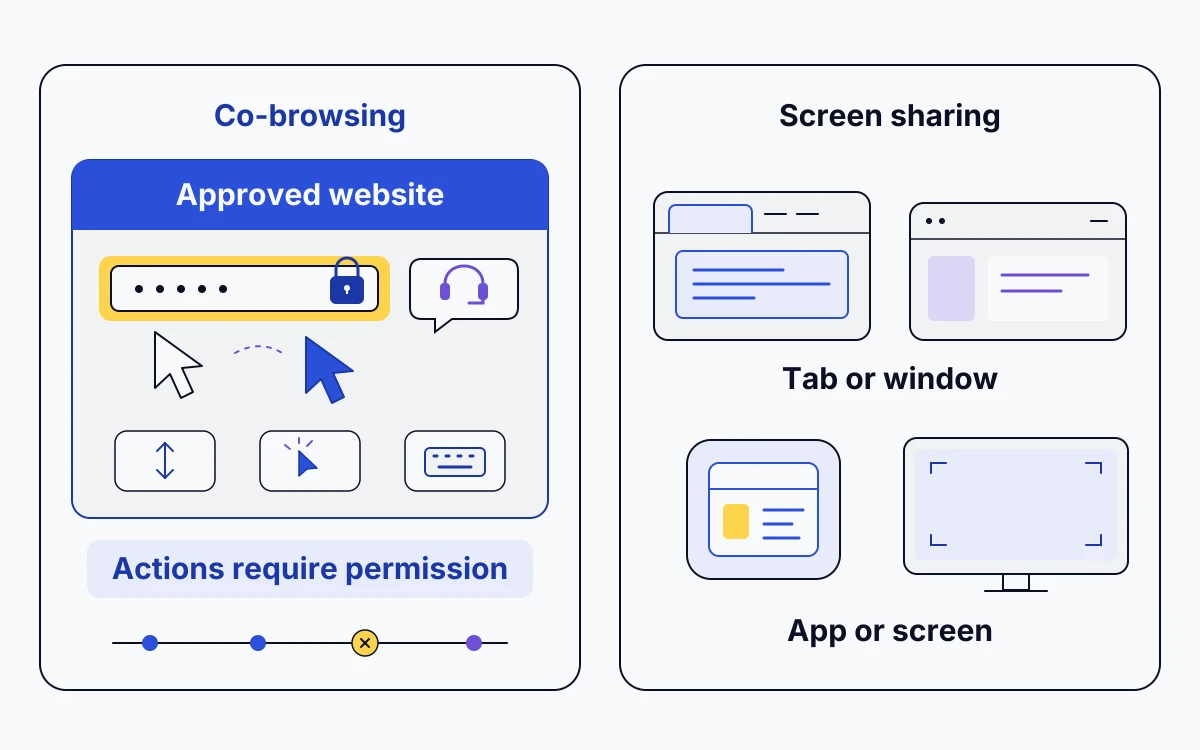
Screen sharing lets the agent see the tab, window, app, or screen the customer selects. Seeing it does not give the agent control.
| What happens | Co-browsing | Screen sharing |
|---|---|---|
| What the agent sees | Approved pages or apps, without the customer’s desktop, files, notifications, or unrelated apps. | The selected tab, window, app, or screen. |
| What the customer experiences | Guidance or allowed actions on the page they are using. | The customer keeps using what they shared while the agent watches and explains. |
| What is shared | Page activity kept in sync; how it is sent varies by tool. | A view of the selected tab, window, app, or screen. |
| Who can act | The customer and, with the needed permissions, the agent. | The customer; the agent needs a remote-control feature and separate permission to act. |
When choosing a support method, treat viewing and control as separate features. Permission to see a page does not include permission to click it. Remote control lets an agent act on the customer’s screen. A screen-sharing session may have no option for this at all.
Screen sharing can also run directly in a browser. How you start a session depends on the tool. It may need a meeting link, permission from the browser or system, or a separate app. A download is not always required.
Choose by where the customer is stuck
Keep website tasks in co-browsing; switch to screen sharing when diagnosis depends on something outside the site. Choose based on the next step the customer needs to complete.
- If a website form stalls midway, choose co-browsing. For a multi-step signup form, guide the customer through the current step and follow the next link with permission.
- When a customer cannot finish a purchase, choose co-browsing. Help them find the checkout option or understand which step needs attention while they stay on the purchase page.
- For a new user lost during onboarding, choose co-browsing. You can guide them through the website’s setup sequence without describing each page in chat.
- Choose screen sharing when installed software or device settings behave unexpectedly. You need to see the application or settings involved while the customer performs the steps.
- A downloaded file that will not open calls for screen sharing. The problem is now in the file viewer or desktop application, beyond the download page.
You can explain that last choice to the customer: “Please share the window where the file fails to open so I can see the error.”
Start with guidance, then request control
Ask permission to guide the customer first. Request control separately, only when the customer needs you to perform the next action.
Request Show me or Take over
- Request Show me. Say: “May I highlight the next step on your page?” Once the customer grants permission, you can point, draw, highlight, and number steps. The customer sees those marks on their own page and performs the actions. The docs page “Show me and Take over: Co-browsing that asks first; Esc ends it” covers this request.
- Request Take over separately. Permission to highlight does not allow you to click or type. Say: “May I click in this tab? Press Esc to stop.” With permission, you can click and type in that tab only. The customer sees the actions on their page and can press Esc to end either mode.
Agents never type into password, card, bank, or tax-number fields; leave those entries to the customer. Password and card fields, plus content marked data-coview-mask, are masked in the visitor’s browser and never reach coview.
Use a call when you need screen sharing
- Start a call from the chat. Calls run in the browser and default to voice, with screen sharing included. Ask the customer to share the relevant window or tab so you can talk through the steps together. The docs page “Voice and video calls: Calls from the chat, in the browser, never recorded” covers starting a call.
Calls are never recorded. The log contains only who called, when, and for how long.
Check session and call allowances
Choose the allowance based on how often your team needs to guide or act on a customer’s page. When estimating call minutes, count everyone on the call.
- Free: 10 co-browsing sessions a month and up to 2 seats.
- Starter: $19 per seat a month, billed yearly, with up to 10 seats, unlimited co-browsing, and 300 call minutes.
Call minutes are counted per person, so your estimate needs to include time for both the agent and the customer.
Before you ask a customer to share
Ask for live sharing only when you need it to fix the issue and the customer agrees. Before you send a request, check these points:
- Know which page, window, or setting you need to see. If you can explain the fix in chat, skip live sharing.
- Explain what you want to see or do before you ask for permission. You can say, “If you’d rather not share, I can walk you through the steps in chat.” If the customer declines, continue without sharing.
- For screen sharing, ask the customer to share only the tab or window you need to see. They should close unrelated content and turn off notifications. The FTC recommends checking for documents, browser windows, and other content they don't mean to share.
- Before you request co-browsing, which lets you view a page with the customer, check that sensitive fields and page content are masked, or hidden from view. Masking must be set up correctly, even when you share only a small part of the page.

We build coview: session replay, co-browsing, chat and calls for support teams. Questions about a post? Ask us from the contact page.