Use live cobrowsing, where an agent guides a customer on their screen, when a customer gets stuck on a specific setup step. Keep self-service setup available alongside it. For enterprises, these tools let agents guide customers directly on the website or web app they are using.
Set a rule for when to switch from written instructions to live help. Your team needs to know what agents and customers each see, and how customers stay in control. Before you launch, compare the plan’s stated limits with your setup support workload. Identify which enterprise requirements you need to check.
How agents and customers work on the same page
You can see the onboarding step the customer is looking at while they stay on your website or web app.
As the agent, you see the page directly, without having to piece it together from chat messages. The customer keeps the form they need to finish or the setup step they need to understand in front of them.
Browser-side masking keeps sensitive field contents out of the shared view. Password and card fields, plus anything marked with data-coview-mask, are masked in the visitor’s browser in both live views and replays. Those contents never reach us.
coview brings session replay, co-browsing, live chat and tickets onto one timeline through one script tag, with no customer installation.
You can set expectations plainly: “You can stay on this page while I help you through this step. Password and card fields are masked from my view.”
When live help beats another onboarding prompt
Switch to live guidance when the customer still cannot complete the step you have described. The kind of help depends on what they need next:
- Live assistance lets you see where the customer is stuck. During an initial workspace setup, for example, switch to guidance if written directions still leave them unable to find the relevant setting.
- Chat works when a text answer can resolve the question, such as explaining what a setup option means.
- Tours suit repeatable feature introductions. A step-by-step introduction can show new users the main features without requiring an agent for each visit.
- Tooltips provide short explanations beside a specific feature. Use them when a customer needs a field explained and does not need help with the whole setup.
Make the handoff explicit: “It sounds like the instructions aren’t matching what you see. Would you like live guidance through this step?”
Guide an onboarding session in coview
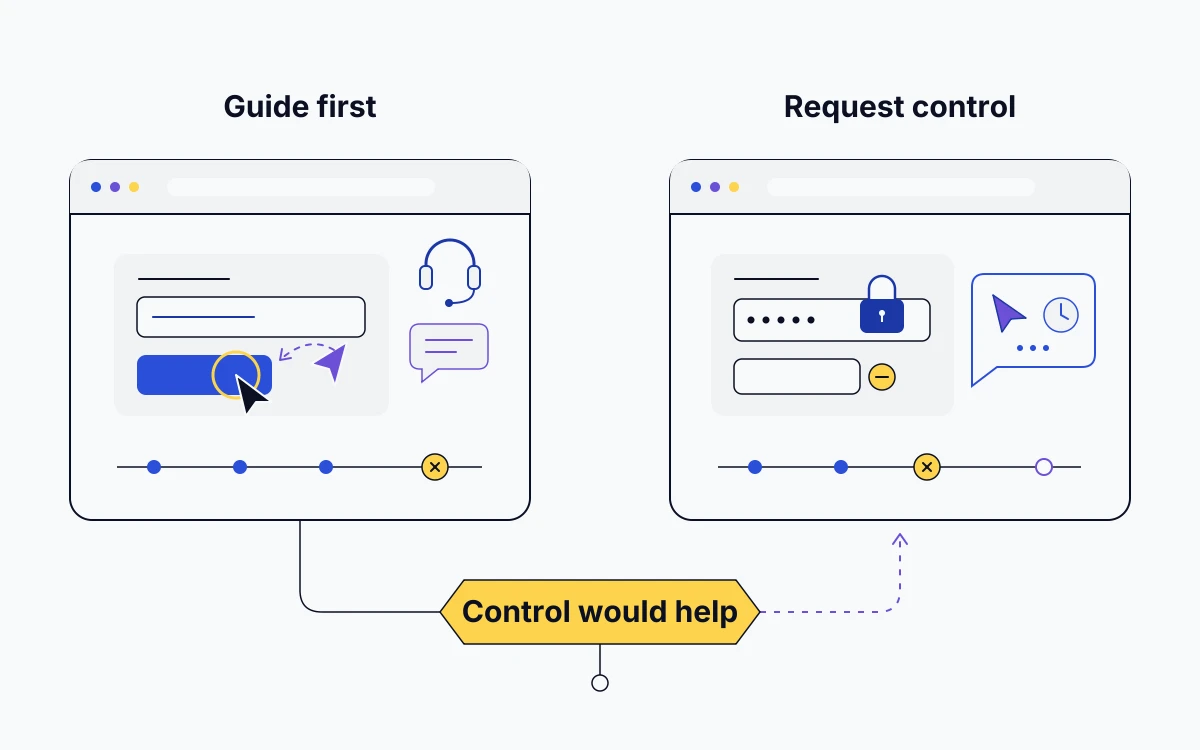
Start with guidance the customer can follow themselves. Request control only when clicking or typing for them would help finish the blocked onboarding step.
- Open Live now to find the customer you’re helping among the people currently on the site. This is where the agent starts, before asking permission to assist. See Docs: Live now and watching a visitor.
- Select Show me and ask permission. The customer gets the request before guidance begins. Once they agree, you can point, draw, highlight and number steps on their page. They see those cues on their own screen and make the clicks themselves. See Docs: Show me and Take over: Co-browsing that asks first; Esc ends it.
You can say: “May I point out the setup option on your page? You’ll still make the clicks, and you can press Esc to stop.”
- Request Take over separately if needed, since permission for Show me does not authorize control. With separate permission, you can click and type in that tab only. The customer sees those actions on their page. Agents never type into password, card, bank or tax-number fields.
You can say: “May I click this setup option for you? Control stays in this tab, and you can press Esc to stop.”
- Have the customer press Esc when assistance is finished. Esc ends either level of co-browsing. To check whether they can continue without help, ask them to complete the next onboarding action themselves.
Match the documented limits to your onboarding workload
Choose a plan with enough agent seats, shared browsing sessions and time to keep visit replays. Count visits separately from sessions where an agent helps: they use different allowances.
| Limit | Free | Starter |
|---|---|---|
| Price | $0 | $19 per seat a month billed yearly |
| Seats | Up to 2 | Up to 10 |
| Recorded sessions | 1,000 a month | 5,000 a month |
| Replay retention | 7 days | 30 days |
| Co-browsing sessions | 10 a month | Unlimited |
Yearly billing saves 20%. To plan your rollout, count the agents who need access. Then estimate how many sessions will need co-browsing, where an agent browses with the customer. Replay retention is how long saved visits stay available. That time should let your engineers review onboarding problems.
We count a recorded session as one visit by one person, however many pages they open. An onboarding visit spanning several setup pages still counts once. Bots and visits where no person showed up are never counted. Base your estimate on visits rather than page views.
Every plan includes session replay (a saved view of a visit), co-browsing and live chat. A new workspace gets every feature for 14 days with no card required. It then moves to Free unless you choose a plan. Before inviting customers, make sure your chosen plan covers the workload after the trial ends. Any requirements your company has for buying an Enterprise plan still need to be checked separately.
Agree on a rollout rule before inviting customers
Before your team helps customers get set up, agree on when a session is complete. Decide what needs checking before purchase and when customers should finish on their own:
- Choose one setup task to mark the session as complete. State what the customer must finish themselves. The session is complete when the customer finishes that task; watching an agent do it doesn’t count.
- Before you buy, ask the people who handle buying, sign-in, security, and data to check the documentation. They need to review purchase terms and sign-in needs. They should also check controls on what agents can access and how long data must be kept. Confirm any open requirements before you buy.
- Skip live help when customers decline or can finish without help. An agent can say: “You can continue on your own. If you get stuck, tell me which step you’re on.”

We build coview: session replay, co-browsing, chat and calls for support teams. Questions about a post? Ask us from the contact page.