When digital customer experiences fail, cobrowsing software lets you view a website with a customer and help when they get stuck. This helps when the page is hard to describe, though it cannot fix a broken checkout or application.
When customers move from self-service to support, help them without asking them to explain every field and click. Set a clear process for helping them get unstuck. It should spell out when to offer help on the shared page. Ask for permission to guide them and, separately, for permission to control the page. The process should also say when to stop guiding and pass the problem on for further help.
Shared page context closes the support handoff gap
Collaborative browsing lets you see the customer’s current page within a website or app. Their entire screen stays out of view.
A handoff breaks down when the customer has the page in front of them and you have only their description. “The address is wrong” might refer to a delivery field, a saved address, or an error message. You have to find out which one they mean before you can help.
Co-browsing shares page state. Some implementations do this by synchronizing the Document Object Model, the browser’s structured representation of a page. Others work differently, depending on the technology; co-browsing does not share whole-screen video.
When a purchase stalls, that shared view lets you see which address field the customer means. You can guide them to the next step while they make the change on their own page. The customer still completes the task, and you can follow along without piecing together the screen from chat messages.
Use shared guidance for confusion, not broken systems
Use live guidance to help the customer choose what to do next. If the right action fails, pass the issue on for investigation rather than repeat the steps.
- Complicated forms: Explain what an unclear field asks for and point out required sections. Let the customer enter their information.
- Account settings: Help the customer find the setting. Before they save, explain what the change will affect.
- Purchases: Explain the checkout stage, shipping choice, or order-review step where the customer is stuck.
- Product finding: Help the customer find a category, filter, or product page that fits their needs. A filter narrows the products shown.
- Software onboarding: Find the setup step the customer has not finished. Explain how it connects to the task they want to complete.
- Workspace configuration: Walk through the options for setting up the workspace. Explain how each choice changes it.
If a form fails with valid information, pass the issue on for investigation. Do the same when a setting will not save. You can say: “That step failed even with the required information. I’ll pass along the action and error for investigation.”
Before rollout, test guidance on the checkout and setup pages, including embedded forms and iFrames (frames that display another page). Guidance needs to work inside the form where customers get stuck. Test masking on your own sensitive fields before using live customer data, so private details stay hidden.
Guide the customer with Show me before requesting control
In coview, start with Show me so the customer can complete the next action themselves. Request Take over only when pointing out the action is not enough and the customer wants you to perform it.
- Add the one script tag to your website or web app before agents begin helping visitors. The customer installs nothing. Setup is covered in Install coview on your site: One script tag, any website or web app.
- Find the customer you are helping in Live now, which shows who is on the site right now. See Live now and watching a visitor: Who is on the site right now.
- Ask for permission to guide: “May I point out the next step on your page?” Show me lets you point, draw, highlight, and number steps. The customer sees those marks on their own page and performs the actions. Mark only the next unfinished action, rather than the whole form.
- If control is needed, say: “May I request control of this tab? Press Esc to stop.” Take over lets you click and type in that tab only. Guidance and control each require a separate permission request. The customer can press Esc to end either. Both permission steps are covered in Show me and Take over: Co-browsing that asks first; Esc ends it.
Keep sensitive entry with the customer. Password and card fields, plus anything marked with data-coview-mask, are masked in the visitor’s browser before the data can leave it. Agents never type into password, card, bank, or tax-number fields.
Free supports up to 2 seats and 10 co-browsing sessions monthly. Starter costs $19 per seat monthly, billed yearly, supports up to 10 seats, and includes unlimited co-browsing. Choose based on how many agents need access and how often these recovery conversations require shared guidance.
Hand off a failed action with the session details
When a valid action fails, stop asking the customer to repeat it. Create a ticket for the unresolved fault with the session, errors, and steps already tried. This lets engineering investigate without asking the customer to start over.
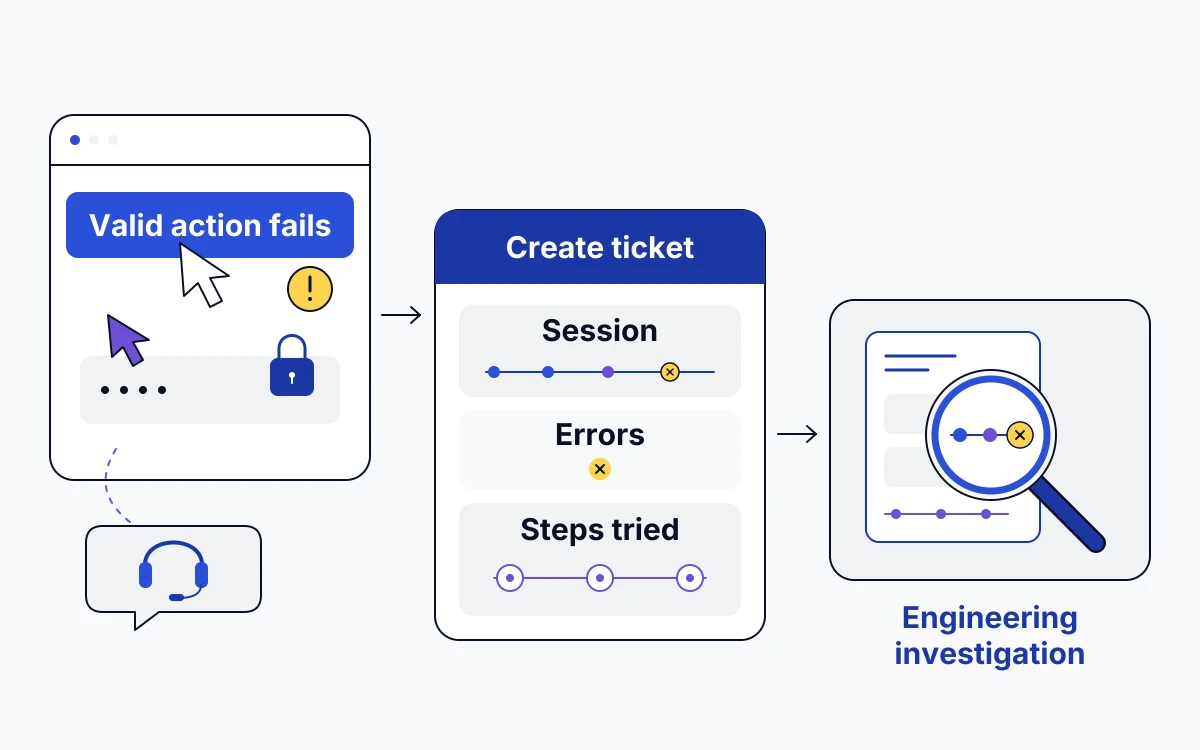
For the stalled purchase, tell the customer: “The delivery address still won’t save. I’m sending engineering the session, the error message, and the steps we tried.” The customer then knows what is being handed off and why.

We build coview: session replay, co-browsing, chat and calls for support teams. Questions about a post? Ask us from the contact page.