Chat co browse lets you see the customer’s current web page and guide them through a task without pausing the conversation. Use it when seeing the page would clear up confusion faster than another exchange of descriptions.
When a chat stalls, your team needs a clear rule for moving to guided browsing, asking permission to view or control the page, and knowing when to stop. The relevant plan limits and a short checklist help your team make those decisions during an active conversation.
How shared browsing helps you see the problem
Co-browsing means collaborative browsing: you and your customer work from the same web page at the same time. During chat, you can both see what is happening on the page without having to describe it to each other.
You see the page the customer is working on. They stay on their own page and follow your guidance. The shared activity is limited to that page; it does not give you unrestricted access to the customer’s computer.
In coview, live chat and co-browsing share one timeline with session replay, voice and video calls, and tickets, keeping guided browsing connected to the support conversation. Installation takes one script tag on your site; your customer installs nothing.
Password fields, card fields, and content marked with data-coview-mask are masked in the visitor’s browser, both live and in replays. Those protected values never reach us, so you see the page with that content masked.
When to stop typing and guide the customer
Keep straightforward answers in chat. Offer live guidance when repeated descriptions still leave you unsure which page or step the customer means.
- Confusing navigation: Watch how the customer moves through the site to see where they get stuck. Their next click can help you understand which route they’re taking.
- Unclear instructions: Look at the page together when the customer cannot match your directions to what they see on their screen.
- Web-form difficulties: Guide the customer through a task, such as completing an insurance claim or reviewing it after filing. This saves them from having to describe each part.
Explain the switch before requesting access: “I’m still not sure which step you’re on. May I point out the next step on your page?”
Request guidance, then control only if needed
Start with Show me, and request Take over only when pointing is not enough. Each level requires separate customer permission: guiding, clicking, and typing need the appropriate permission.
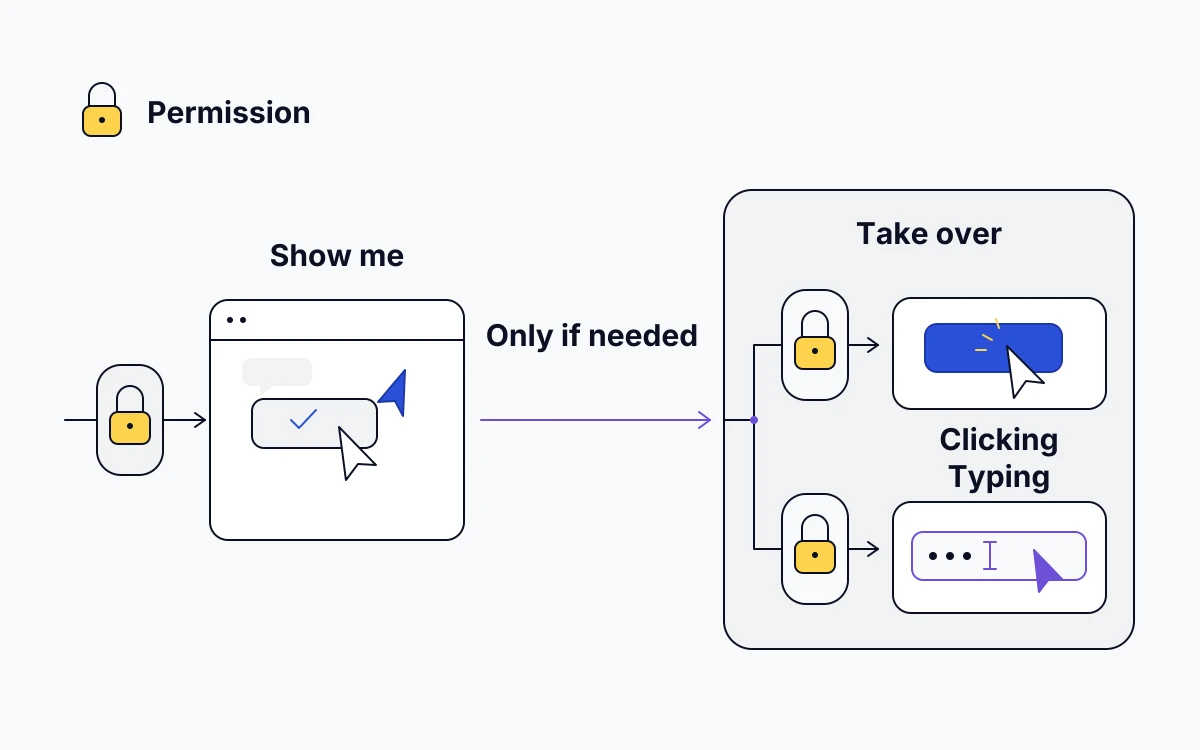
Ask permission for each level of help
- Ask for Show me permission: “May I point out the next step on your page?” Once the customer agrees, you can point, draw, highlight, and number steps on their page. The customer sees your guidance and makes the clicks themselves. The docs page “Show me and Take over: Co-browsing that asks first; Esc ends it” covers this step.
- If the customer needs you to perform an action, request Take over separately: “May I click and type in this tab? You can stop me with Esc.” That separate permission lets you click and type in that tab only. Explain each action before you make it so the customer can follow along on their screen. Password, card, bank, or tax-number fields are always for the customer to fill in; never type into them.
- Have the customer press Esc when guidance is finished. Esc stops either level. Once the customer can continue without help, say, “You can take it from here. Press Esc to end the guidance.”
Check the co-browsing allowance
Every coview plan includes co-browsing. Before making guided browsing a routine part of chat, check your workspace’s allowance.
- Free: 10 co-browsing sessions monthly and up to 2 seats.
- Starter: Unlimited co-browsing and up to 10 seats at $19 per seat monthly, billed yearly.
Choose based on how often your team needs guided sessions and how many agents need seats.
Agree on a short team checklist
Offer guided browsing when the problem is on the page and the customer wants help that way. Agree on this checklist as your team’s rule:
- Ask, “Would live guidance help?” before requesting shared access.
- Keep helping in chat if the issue is off-page or the customer declines shared access.
- For a pilot, choose a recurring point of confusion, such as reviewing a claim before submission.
- Note whether guidance cleared up the confusing step and the customer could continue independently. That review should determine whether you keep offering it for that workflow.

We build coview: session replay, co-browsing, chat and calls for support teams. Questions about a post? Ask us from the contact page.